
Privacy
What Can Someone See With Your Apple ID?
Your Apple ID is the key to iCloud, not to your whole phone. Someone who signs in as you can reach what's synced to your account, and nothing that never leaves your device. Here's exactly where that line falls, and how to protect it.
With your Apple ID and the ability to pass two-factor authentication, someone can sign in to your iCloud account and see what’s synced there: iCloud Photos, backups, notes, and your devices’ locations. What they cannot reach is anything that never leaves your device. Your Apple ID is the key to your account, not to your whole phone.
What your Apple ID actually unlocks
Your Apple ID, which Apple now calls your Apple Account, is the single login behind iCloud and every Apple service you use. That makes it powerful, and it’s worth being precise about what “access to your Apple ID” really means. It does not mean access to the phone in your pocket. It means access to whatever you have chosen to sync to iCloud, from wherever the person signing in happens to be.
If someone signs in to your account, here is the kind of data that becomes reachable, and, just as importantly, what stays out of reach:
| iCloud data | Reachable after an Apple ID sign-in? |
|---|---|
| iCloud Photos | Yes, if iCloud Photos is turned on |
| iCloud Backup (messages, app data) | Yes |
| iCloud Drive files | Yes |
| Notes, Contacts, Calendar | Yes |
| Device location via Find My | Yes |
| Photos kept only on the device | No |
| An on-device encrypted vault | No |
The pattern in that table is the whole point. Your Apple ID exposes what lives in the account. It has no reach at all over data that stays local to a device and was never uploaded. That distinction is the thread running through everything below.
What someone could do, not just see
Account access is not only about reading data; it’s also about control, and it helps to know the fuller picture so none of it catches you off guard. Someone signed in to your Apple Account could, in principle:
- Locate and remotely lock or erase your devices through Find My, seeing where each one is.
- Trigger Activation Lock, which ties a device to your Apple ID so it can’t be set up again, in effect holding your own hardware hostage.
- Read Messages in iCloud and iCloud Backups, which often hold texts and app data, not just photos.
- See purchase history and manage subscriptions, and depending on settings, make purchases.
- Change your account details, including the password and trusted contacts, to lock you out.
Framed plainly, this is why the account deserves as much care as the device itself. The reassuring counterpoint stays the same throughout: none of it touches data that was never in the account to begin with.
Your Apple ID and your passcode are two different keys
A lot of worry about Apple IDs comes from blurring two separate things. Your device passcode unlocks the physical iPhone: type it in, and the whole phone is open in your hands. Your Apple ID unlocks your account: enter it, and iCloud opens on any device or browser, anywhere. They are different locks guarding different doors.
Someone can hold one key without the other. A person who shoulder-surfs your passcode at a cafe has your phone’s contents but not your iCloud login. Someone who phishes your Apple ID password from a fake email has your account but not the device sitting in your bag. We cover the first scenario in detail in what someone can do if they know your iPhone passcode. This article is about the second. Keeping the two clear in your head is the first step to protecting both, since the defenses are not the same.
Why two-factor authentication is the real lock
Here is the reassuring part, and it’s accurate: your password alone is usually not enough to get into your account. Apple requires two-factor authentication on Apple Accounts, which means a sign-in from a new device or from iCloud.com triggers a six-digit code sent to a device you already trust. Without that code, a stolen or guessed password normally hits a wall.
When a sign-in is attempted, a device you already own shows a prompt with a map of the sign-in’s rough location and asks you to allow or deny it, and only after you allow it does the six-digit code appear. That extra handshake is why a password leaked from some unrelated website rarely turns into someone reading your iCloud. Still, no lock is perfect, and it’s worth knowing where the gaps are.
Real account compromises tend to come from a small set of specific situations rather than password guessing alone:
- A trusted device someone already controls, like an old iPad still signed in to your account, or a shared family device.
- SIM-swapping, where an attacker ports your number to intercept codes sent by text. Using a code from a trusted Apple device, rather than SMS, is stronger.
- Phishing you into handing over the code, through a fake “your Apple ID is locked” message. Apple never asks you to read your verification code to anyone, by phone, text, or email.
None of this is cause for alarm; it’s cause for good habits. The takeaway is simply that two-factor authentication does most of the heavy lifting, and the weak points are things you can watch for rather than things happening silently in the background.
Does Advanced Data Protection change what’s exposed?
Advanced Data Protection is Apple’s optional upgrade that end-to-end encrypts far more of your iCloud data, including iCloud Photos and backups, so that Apple itself holds no keys. With it on, a breach of Apple’s servers or a legal demand can’t hand over that data, because Apple genuinely cannot read it. It’s a meaningful improvement, and we walk through it in what iCloud Advanced Data Protection does and doesn’t do.
But it’s important to be honest about the limit, because it’s easy to overestimate. Advanced Data Protection protects your data from Apple and from server-side attackers. It does not protect you from someone who signs in as you. If a person has your credentials and clears two-factor authentication, your account treats them as you, and they see your photos exactly as you would. End-to-end encryption secures data in transit and at rest on Apple’s side; it is not a lock on the front door of your own account. That door is still your password and your second factor.
What a compromised Apple ID cannot reach
Now the genuinely reassuring boundary. Because your Apple ID only opens what’s in your account, any data that never syncs to iCloud sits entirely outside its reach. A photo that lives only on your device, in an app that stores it locally and uploads nothing, is not part of your Apple Account at all. Someone signing in to your iCloud has no path to it, because there is nothing about it in the account to find.
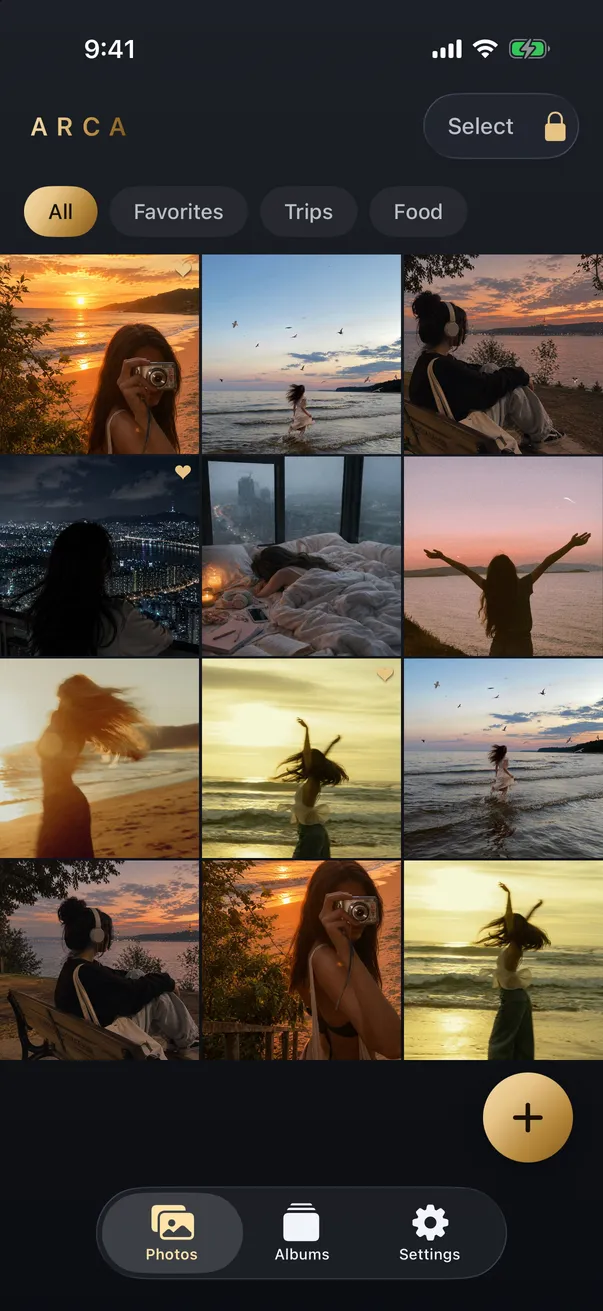
This is the model Arca is built on. Photos you move into Arca are encrypted on the device with AES-256-GCM, using a key derived from your passphrase through Argon2id, and nothing is sent to a server, because Arca has no account and no cloud. There is no Arca login tied to your Apple ID and no copy in iCloud. So a compromised Apple Account exposes what’s in iCloud, and reaches an on-device vault not at all. It’s the same reasoning behind keeping sensitive images off a shared iPhone or iCloud: the safest photo is the one that isn’t in the account anyone else can sign in to.
To make that concrete, picture the worst realistic case. Someone phishes your Apple ID password and, through one bad moment, gets past two-factor authentication. Signing in at iCloud.com, they could open your synced photo library and scroll it. The photos you had already moved into an on-device vault would appear nowhere in that session, because they were never uploaded and are tied to no account. The intrusion is real and worth preventing, but its blast radius stops at the edge of what you chose to sync in the first place.
Two honest caveats keep this accurate. First, this only covers photos you have actually moved into the vault; anything still sitting in iCloud Photos is reachable through your account, which is a good reason to consider whether sensitive images belong in iCloud at all. Second, an on-device vault protects against account compromise, not against someone who physically unlocks your phone and knows the vault’s passphrase. Different lock, different threat. What it does cleanly is take your most private photos out of the account equation entirely.
Signs someone else may be in your account
You are not meant to guess in the dark. Apple gives you several ways to notice unfamiliar access, and checking them occasionally is a calm, five-minute habit rather than a panic response:
- Unexpected sign-in notifications. Apple emails and on-device alerts you when your Apple ID is used on a new device.
- Unfamiliar devices in your account. Settings, then your name, lists every device signed in. Anything you don’t recognize can be removed.
- Changes you didn’t make, such as your password, trusted phone number, or recovery details being altered.
- Being signed out unexpectedly, which can follow someone else changing the password.
If something looks wrong, changing your password signs out every device and is the fastest way to close an open door.
How to protect your Apple ID
Protecting your account is mostly a handful of durable habits, none of them complicated:
- Use a strong, unique password you don’t reuse anywhere else, so one leaked site can’t unlock your Apple ID.
- Keep two-factor authentication on and your trusted phone number current, so codes reach you and not an old number.
- Treat “Apple ID locked” messages with suspicion. Go to Settings or Apple’s official site directly rather than tapping links, and never share a verification code.
- Review your signed-in devices now and then, and remove any you no longer use.
- Consider Advanced Data Protection and a recovery key for stronger encryption of what you do keep in iCloud.
- Keep your most sensitive photos off iCloud, either by turning off iCloud Photos sync or by storing them in an on-device vault that your account never touches.
Do those, and the honest answer to “what can someone see with your Apple ID” becomes: only what you’ve chosen to keep in the account, guarded by a lock you control, with your most private images kept outside it altogether.
Get Arca on the App Store to keep your private photos in an on-device vault with no account and no cloud, so a compromised Apple ID has nothing of yours to find.
Frequently asked questions
Can someone see my photos with just my Apple ID password? +
Usually not with the password alone. Signing in to your Apple Account from a new device or the web requires two-factor authentication, which sends a six-digit code to a device you already trust. Without that code, a password on its own is normally not enough to get in. The real risk cases are narrow: someone who also has one of your trusted devices, who can intercept your text messages, or who tricks you into reading out a verification code. If any of those happens and they reach your account, then yes, iCloud Photos would be visible to them, but only the photos actually stored in iCloud.
Is my Apple ID the same as my iPhone passcode? +
No, and the difference matters. Your device passcode unlocks the physical iPhone in your hand. Your Apple ID, also called your Apple Account, unlocks your iCloud account from anywhere in the world, including a browser or a brand-new device. Someone can know one without the other. A stranger who guesses your passcode has your phone's contents; someone who phishes your Apple ID has your iCloud, but not necessarily the device itself. They protect against different threats, which is why both deserve a strong, separate password.
Does Advanced Data Protection stop someone who has my Apple ID? +
Only partly, and it helps to be clear about which part. Advanced Data Protection end-to-end encrypts more of your iCloud data, so Apple holds no keys and a server-side breach or legal request can't expose it. What it does not do is stop someone who successfully signs in as you, because to your account they are you, and they see the data the same way you would. So Advanced Data Protection is a strong defense against Apple and attackers on the server side, but not a substitute for a secure password and two-factor authentication on the account itself.
Keep reading
Privacy
Does Apple Scan Your Photos? A Calm, Accurate Answer
Three separate things get mixed together here: on-device analysis, the CSAM plan Apple abandoned, and Enhanced Visual Search. Only one of them contacts Apple's servers, and it's less alarming than the headlines suggested. Here's what each actually does.
Privacy
What Can a Repair Shop See on Your iPhone?
A hardware repair rarely needs your data at all, and a reputable shop won't ask for your passcode. The exposure comes from handing over an unlocked phone. Here's what a repair shop can actually see, and how to hand yours over with nothing to find.
Privacy
Do Live Photos Record Sound?
A Live Photo is a still image plus about three seconds of video, and that clip carries an audio track. Here's what travels when you share one, and how to send just the picture.
Your photos. Truly private.
Keep your photos in an encrypted vault on your iPhone, with no Arca account or automatic vault upload.
Free to download · iPhone · iOS 18+