
Privacy
What Can a Repair Shop See on Your iPhone?
A hardware repair rarely needs your data at all, and a reputable shop won't ask for your passcode. The exposure comes from handing over an unlocked phone. Here's what a repair shop can actually see, and how to hand yours over with nothing to find.
What a repair shop can see on your iPhone depends almost entirely on one thing: whether you hand it over locked or unlocked. A locked, encrypted iPhone shows a technician nothing. Most hardware repairs never need it unlocked, and a reputable shop won’t ask for your passcode. The exposure comes from handing over an open phone.
What a repair shop can actually see
Start with the reassuring part, because it’s the accurate one. When your iPhone is locked, its storage is encrypted, and a technician holding it cannot read your photos, messages, or anything else without your passcode. The hardware can be worked on, swapped, and tested at the component level without any of your data being readable. So a locked phone, handed to a repair shop, is genuinely opaque.
The picture changes completely the moment the phone is unlocked. An unlocked iPhone is an open book: whoever is holding it can open Photos, scroll your camera roll, read Messages, and browse anything else, exactly as you could. Encryption protects data at rest on a locked device; it does nothing once the device is unlocked and in someone’s hands. That single distinction, locked versus unlocked, is the whole story of repair-shop privacy.
So the useful question isn’t really “can a repair shop see my data,” it’s “will my phone be unlocked while they have it, and do they actually need it to be.” For most repairs, the answer to the second part is no, which makes the rest manageable.
Most repairs don’t need your data at all
The everyday repairs are hardware jobs, and hardware doesn’t require your passcode. A cracked screen, a worn battery, a broken charging port, a faulty camera module: these are physical components a technician replaces without ever unlocking the phone. Apple is explicit that it and its Authorized Service Providers won’t ask for your Apple Account password or device passcode, and for a straightforward hardware fix there’s no reason they’d need to.
This matters because it reframes the default. You don’t have to choose between fixing your phone and protecting your photos; for the common repairs, you can hand over a locked device, decline to share your passcode, and lose nothing on either side. A good shop expects this and works around it.
Where people get into trouble is treating the passcode as a routine part of drop-off, handing it over automatically because it feels like part of the process. It usually isn’t. Apple’s own guidance is blunt about it: don’t give your passcode to anyone, and Apple won’t ask. Starting from “locked, no passcode” and only loosening that if there’s a real reason is the right default.
When a repair genuinely needs the phone unlocked
There are legitimate exceptions, and knowing them keeps you from being either careless or paranoid. Some repairs need a functionality test once the hardware work is done, confirming the new screen registers touch correctly, the camera focuses, or the microphone picks up sound. That test can require the phone to be on and unlocked.
The safe way to handle it is Apple’s recommendation: if you’re asked to enter your passcode for something like a software issue or a post-repair test, enter it yourself rather than sharing it, and stay present while the technician has access. Being in the room changes the situation entirely, because the risk was never the unlocking itself, it was leaving an unlocked phone alone with someone. A quick test you watch is very different from dropping off an unlocked phone for the afternoon.
Third-party shops are where more judgment is needed. Some do ask you to leave the phone and provide the passcode, and while most technicians are honest professionals, handing over both is handing over complete access to everything on the device. If a shop insists on the passcode for what should be a hardware repair, that’s a reason to ask why, or to prepare the phone so there’s nothing sensitive to reach.
The real risk, stated plainly
It’s worth being direct about the actual risk, without inflating it. The danger isn’t some exotic hack or a technician defeating encryption; it’s the ordinary fact that an unlocked phone, left with someone, exposes whatever is in the Photos app to simple curiosity. That’s the same vulnerability that exists any time your unlocked phone is in another person’s hands, which we cover in what someone can see if they know your passcode.
Framed that way, the fix is obvious: control whether the phone is unlocked and what’s on it when it leaves your hands. You don’t need to distrust every technician; you need to not rely on trust in the first place. The steps below make the question moot.
How to tell a repair shop is trustworthy
You can lower the risk further by where you take the phone, and a few signals separate a shop that respects your data from one that doesn’t. None of this is about suspicion for its own sake; they’re simply the marks of a professional operation.
- It doesn’t demand your passcode. A shop that insists on your passcode for a plain hardware repair is asking for more access than the job needs, which is worth questioning.
- It’s clear about data handling. Authorized providers follow Apple’s privacy rules, and a good independent shop can tell you plainly whether it needs the phone unlocked and why.
- It lets you stay or wait. Watching a quick repair, or having it done while you wait, removes the window where an unlocked phone sits unattended.
- It has a real track record. An established shop with a reputation to protect has little incentive to risk it over one customer’s camera roll.
When a shop meets these, an everyday repair is low-risk. When one doesn’t, prepare the phone as if it might be browsed, and you’ve lost nothing either way.
What to do before you hand it over
A little preparation turns a repair from a privacy gamble into a non-event. Match your effort to the repair and how sensitive your phone’s contents are:
- Back up first, always. Use iCloud or your computer so nothing is lost if the phone gets erased during service, which Apple sometimes does.
- Turn off Find My and sign out if erasing. In Settings, tap your name, then Find My, and turn off Find My iPhone before a full wipe or major service.
- Hand over a locked phone. For a normal hardware repair, don’t volunteer your passcode; a good shop doesn’t need it.
- Enter the passcode yourself if a test needs it, and stay present. Never leave an unlocked phone unattended with anyone.
- For maximum privacy, erase and restore. Wipe the phone before the appointment and restore from your backup afterward, so there’s literally nothing to see.
The table below maps common situations to the right level of caution.
| Repair type | Needs unlocking? | What to do |
|---|---|---|
| Screen, battery, port, camera | No | Hand over locked, skip the passcode |
| Post-repair functionality test | Sometimes | Enter passcode yourself, stay present |
| Software troubleshooting | Sometimes | Stay present, or back up and erase first |
| Any third-party shop asking for your passcode | Their request | Back up and erase, or reconsider the shop |
The most thorough option: back up and erase
If a repair is major, if you’re leaving the phone overnight, or if you simply want the question off the table, the most complete protection is to back up and then erase the phone before handing it over. A wiped iPhone, restored from your backup once you get it back, means the technician works on a device with none of your data on it. There’s nothing to browse because there’s nothing there.
This is the same erase-and-restore discipline that matters when you sell or pass on a phone, and the steps are identical; we walk through them in how to wipe your iPhone before selling it. It takes a bit of time and a good backup, but for genuinely sensitive situations it’s the only approach that removes trust from the equation entirely. Erasing is the privacy equivalent of clearing your desk before a stranger sits at it.
The one caveat is the backup. Erasing without a current backup means losing your data for real, so confirm the backup completed before you wipe. Done in the right order, back up, verify, erase, service, restore, you get full protection with nothing lost.
Photos you keep on the phone: an extra lock
Erasing before every repair isn’t always practical, and plenty of the time you’ll hand over a phone that still has your data on it. That’s fine for a locked hardware repair, but it does mean anything in your Photos library is exposed if the phone ends up unlocked. For the photos that matter most, it’s worth having a layer that stays shut even then.
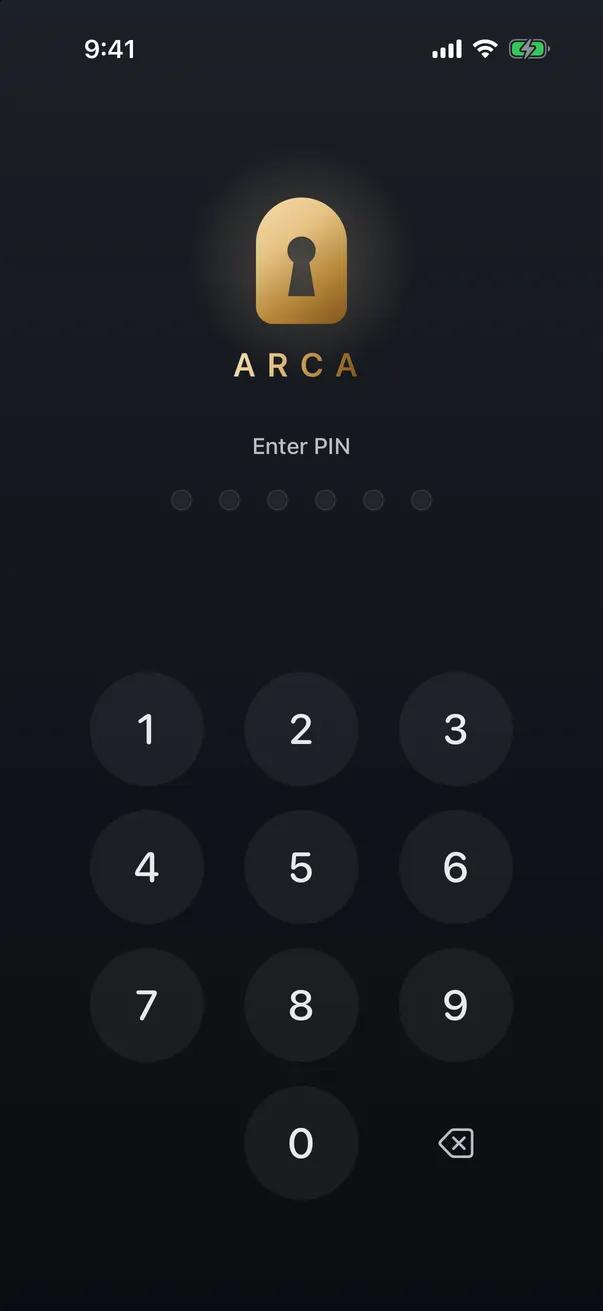
That’s the case for an on-device vault. A photo kept in a vault with its own separate PIN doesn’t open just because the phone is unlocked, so even an unlocked handover, or a shared passcode, doesn’t reach it. The vault’s encryption is independent of the device lock, which we explain in how photo vault encryption works. It’s not a replacement for backing up or for erasing when that’s warranted; it’s a way to keep your most private photos sealed through the ordinary, everyday repair where you didn’t wipe the phone.
Where Arca fits
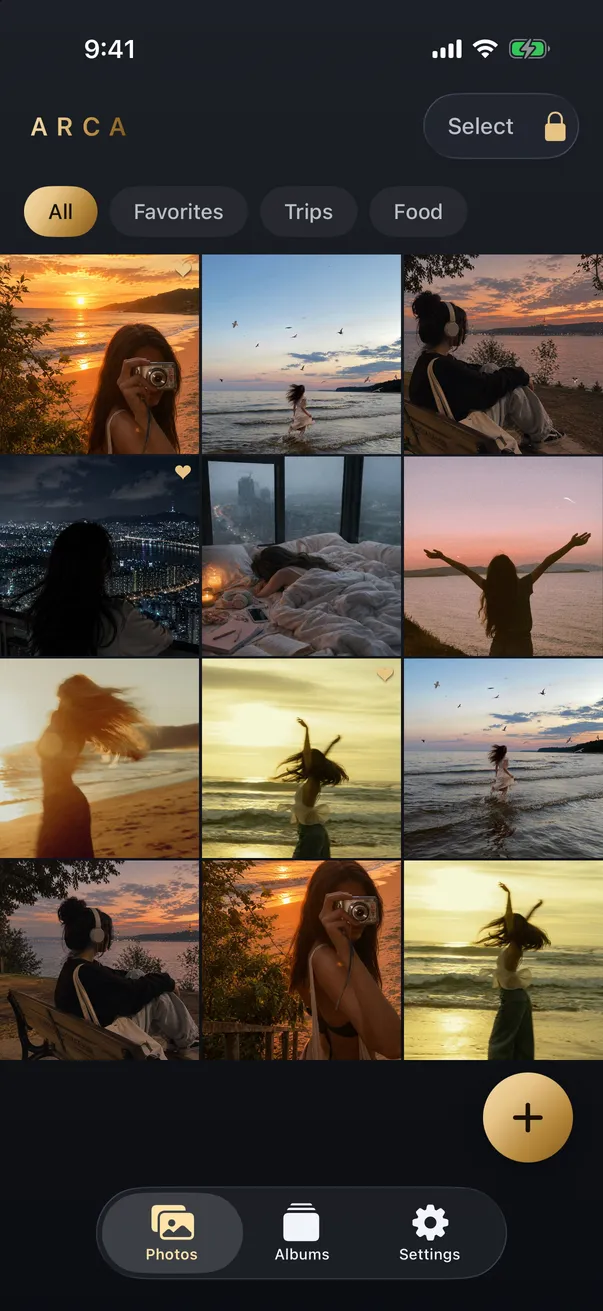
Arca is an on-device vault built for exactly this gap. Each photo is encrypted with AES-256-GCM using a key derived from your PIN through Argon2id, in the app’s own container with no automatic vault upload or Arca account. Because that PIN is separate from your device passcode, the vault stays locked even when the phone is unlocked, so a repair handover, or a passcode you had to share for a test, doesn’t open it. For situations where you might be pressured to unlock, Arca also offers a decoy vault; the model is laid out on our security page.
To be straight about the limits, since honesty is the point: a vault protects only what’s inside it, so anything left in your main Photos library is still visible on an unlocked phone, and for a major repair, backing up and erasing remains the most complete protection. Arca also keeps nothing on a server, so it can’t recover your photos if you forget your PIN, which is another reason to keep your own backup before any service. Use a locked phone and a skipped passcode for everyday repairs, erase-and-restore when the stakes are high, and a vault to keep the sensitive photos sealed through all of it.
Get Arca on the App Store to keep your private photos in an on-device vault that stays locked even when your phone isn’t, so handing it in for repair never means handing over your photos.
Frequently asked questions
Do I have to give a repair shop my iPhone passcode? +
Usually not. Apple and Apple Authorized Service Providers won't ask for your passcode, and most repairs, screen, battery, charging port, camera, are hardware jobs done without ever unlocking the phone. Some repairs need a functionality test afterward, where you might be asked to enter your passcode yourself; if so, stay with the device while they have access. Be more cautious with third-party shops that ask you to hand over both the phone and the passcode, since that gives full access to everything on it. When in doubt, back up and erase the phone first so there's nothing to see.
Can a repair technician see my photos? +
Only if the phone is unlocked while they have it. On a locked iPhone, the storage is encrypted and a technician can't read your photos or messages. The risk is specific: if you hand over an unlocked phone, or share your passcode, then everything in the Photos app is visible to whoever is holding it, the same as if a friend picked it up. A hardware repair doesn't require that access. The safest approach is to make sure the phone is either erased or locked, and to keep especially private photos in a vault with its own separate PIN.
What should I do with my photos before getting my iPhone repaired? +
Back up first, so nothing is lost if the phone is erased during service, which Apple sometimes does. Then decide how much to leave on the device. For a normal hardware repair you can simply hand over a locked phone and skip sharing your passcode. For extra peace of mind, or if you must share the passcode, back up and then erase the phone before the appointment and restore it afterward, so there's genuinely nothing to access. Any sensitive photos you keep on the phone are safest inside a vault that stays locked even when the phone is unlocked.
Keep reading
Privacy
What Can Someone See With Your Apple ID?
Your Apple ID is the key to iCloud, not to your whole phone. Someone who signs in as you can reach what's synced to your account, and nothing that never leaves your device. Here's exactly where that line falls, and how to protect it.
Privacy
Do Live Photos Record Sound?
A Live Photo is a still image plus about three seconds of video, and that clip carries an audio track. Here's what travels when you share one, and how to send just the picture.
Privacy
Your Photo Widget Is Showing People Your Photos
A Photos widget picks from your whole library and puts the result on a screen anyone can see from across a table. Here's how to narrow what it draws from.
Your photos. Truly private.
Keep your photos in an encrypted vault on your iPhone, with no Arca account or automatic vault upload.
Free to download · iPhone · iOS 18+