
Guides
Why Your iPhone Keeps Resurfacing Private Photos
Memories, widgets, Spotlight and the lock screen all pull from the same camera roll, which is why a photo you'd forgotten can appear while someone's watching. Here's how to quiet every surface, and what quieting them doesn't fix.
Your iPhone resurfaces photos because Memories, widgets, Spotlight and the lock screen all read from one camera roll, and none of them know which pictures you’d rather not see appear. You can quiet every one of those surfaces in a few minutes. What that doesn’t do is remove the photo from the library everyone can still scroll.
The short answer
There’s a specific moment this article is about. You’re showing someone a photo of your dog, or handing over your phone to display a boarding pass, and the widget cycles, or a Memory autoplays, and something from three years ago is suddenly on screen.
Nothing has gone wrong. The Photos app is doing the job it was built for, digging out pictures you haven’t looked at in a while and putting them back in front of you. It’s a lovely feature. It just has no idea which of those pictures you’d rather it left alone.
So there are two separate jobs here. Quieting the surfaces stops the ambushes, and takes about five minutes. Protecting a photo is a different job, and no amount of toggling gets you there.
Every place a photo can appear without you opening it
See the full list before you start, because most people fix one surface and assume they’re done.
| Surface | What triggers it | How exposed you are |
|---|---|---|
| Memories | Automatic, based on dates, people and places | Autoplays with music, often full screen |
| Featured Photos | Automatic, refreshes through the day | Top of the Photos app, visible on opening |
| Photos widget | Rotates on a timer | Home Screen and lock screen, no unlock needed |
| Spotlight search | Typing almost anything | A photo can appear beside an unrelated result |
| Shared Album suggestions | Automatic, prompts you to share | Suggests specific photos to specific people |
| Photos in other apps | Any app you granted full library access | Whatever that app decides to show |
Check the lock screen widget first. It puts pictures on a screen anyone can read without unlocking your phone, on a desk, in a meeting, face up on a table.
Turn off Featured Content and Memories
This is the big one, and it removes the automatic curation that drives most of the surprises.
On recent versions of iOS, open the Photos app, go to the Collections tab, tap your profile icon in the top right, then scroll to Featured Content. Turn off Show Featured Content, and turn off Show Memories.
If you’re on an older release, the same controls live in Settings, under Apps and then Photos. Apple has moved these between the app and Settings more than once, so if the path doesn’t match what you see, look in the other place before assuming your phone is different.
Turning both off stops the Photos app generating highlights, and it also quiets the Home Screen widgets that draw from that curation. It does not collapse the automatic sections in your library view, which is a separate preference and mostly cosmetic.
If it’s one person or one period
Sometimes the issue isn’t the whole feature, it’s a single person or a stretch of time you’d rather not revisit.
Photos lets you mark a person, a place or a memory as something to feature less often. On a person, open them from the People album and use the option to feature that person less. On a Memory, the same choice sits in its menu, and you can do the same for a date range or a holiday.
This is the right tool for an ex, a bereavement, or a period you’d rather not have replayed at random. It’s a preference you’re expressing to a recommendation system, though. It reduces how often something appears rather than guaranteeing it never will, so it’s not the tool for anything you actually need kept away from other eyes.
Deal with the widgets directly
Widgets deserve their own pass, because turning off Memories doesn’t necessarily empty every one of them.
The simplest fix is removing the Photos widget entirely. Long-press it, choose to remove it, and the whole category of problem goes away.
If you like having photos there, you can pin it instead. Long-press the lock screen, tap Customize, tap the Photo widget, then the ellipsis, and choose to select manually. Point it at one album you’ve curated, or a single picture. A widget showing one photo you chose is a widget that can’t surprise you.
Do this on both the lock screen and the Home Screen. They’re configured separately, and fixing one leaves the other exactly as it was.
There’s one more surface here that people miss, because it isn’t a widget at all. Photo Shuffle is a lock screen wallpaper option, set up under Settings and then Wallpaper, and it rotates through pictures on its own schedule. If you chose the People or Nature shuffle rather than picking an album yourself, your phone is selecting those images automatically, and the Featured Content toggle doesn’t govern it. Either switch the wallpaper to a still image or edit the shuffle to draw from an album you control.
Stop photos turning up in search
Spotlight indexes your photo library, and that’s convenient right up until a search for a restaurant name pulls up a picture you’d forgotten was in there.
You’ll find the control under Settings, in the Photos app’s own entry, in the Siri and Search section. Turning off the option to show content in search keeps photos out of Spotlight results while leaving the Photos app’s internal search working normally.
While you’re in there, check Shared Albums too. The suggestion feature proposes photos to share with specific people, and it decides what to suggest based on who appears in the picture. Narrow problem, uncomfortable when it misfires.
What none of this actually does
Here’s the part that matters, and it’s the reason this article isn’t just a settings list.
Every toggle above changes what your phone chooses to show you. Not one of them changes what your phone stores. After you’ve turned all of it off:
- The photos are still in your library, and anyone scrolling the camera roll finds them in seconds.
- They’re still in any iCloud Photos sync and any backup you’ve made.
- Any app you’ve granted full photo library access still reads them.
- They’re still there for anyone who picks up your unlocked phone.
Act on that third point separately, because it’s the one people forget they ever agreed to. When an app asks for your photos, iOS offers a limited option, where you hand over specific pictures instead of the entire library. Most of us tap the full-access button once during setup and never look again. Go to Settings, open Privacy and Security, then Photos, and read the list. Anything that only ever needed one image for a profile picture can drop to limited access, and anything you don’t recognise can be cut off entirely. It’s the highest-value item in this article, and it takes about two minutes.
The Hidden album isn’t the answer either. It’s locked behind Face ID on current iOS, which is better than it used to be, but it’s a clearly labelled folder that announces exactly where the interesting pictures are. We went through why that matters in why the iPhone Hidden album isn’t actually private.
So the settings solve the ambush problem, which is real and worth solving. They don’t solve the access problem at all.
The five-minute pass, in order
If you do nothing else, do these, roughly in order of how much they buy you.
- Audit photo permissions. Settings, then Privacy and Security, then Photos. Downgrade anything that doesn’t need your whole library.
- Check the lock screen. Remove the Photos widget, and switch Photo Shuffle to a still image or an album you picked.
- Turn off Featured Content and Memories. In the Photos app under Collections, behind your profile icon, or in Settings on older releases.
- Turn off photo content in search. In the Photos entry in Settings, under Siri and Search.
- Check Shared Albums. Turn off the suggestion prompts if you’ve never wanted them.
- Empty Recently Deleted. Anything you deleted in the past thirty days is still sitting there, fully viewable.
That last one catches people out constantly. Deleting a photo doesn’t remove it, it moves it into a folder that keeps it for a month, and that folder is one tap from the main library view.
The only move that takes a photo out of circulation
If a photo isn’t in the library, no surface can resurface it. That’s the principle, and everything above is a workaround for not applying it.
In practice that means moving the picture out of Photos into somewhere encrypted, then deleting the original, Recently Deleted included. Once it’s gone from the library it can’t appear in Memories, can’t land in a widget, can’t show up in Spotlight, and isn’t visible to apps with library access. There’s nothing left for any of them to read.
The trade-off is real, so here it is. A photo in an encrypted vault is less convenient than a photo in your camera roll. You give up automatic iCloud sync for those pictures, which makes you responsible for your own backup of anything irreplaceable. For most people the sensible split is a small number of sensitive photos in a vault and everything else left where it is, rather than trying to lock down an entire library. Our comparison of where to store private photos walks through the options.
Where Arca fits
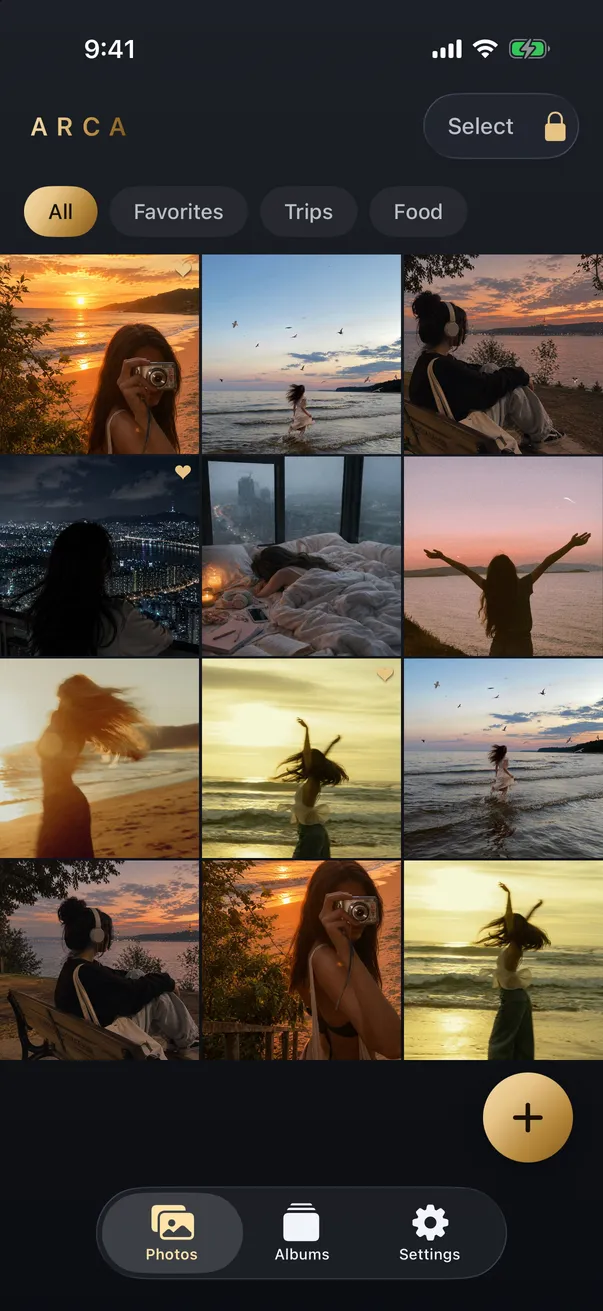
Arca exists for that small set of photos. You move them in, they’re encrypted individually with AES-256-GCM, and the key is derived from your PIN using Argon2id, a deliberately slow function that makes guessing the PIN expensive rather than instant.
Everything stays in the app’s container on your device. Arca does not automatically upload your vault or expose its contents to photo widgets. Copies left in Photos must be removed separately. If you’re ever in a position where you might be pressured to unlock, there’s a decoy vault. The full model is on our security page.
The limits, stated plainly. A vault protects the photos you actually move into it, so anything left in the camera roll stays exactly as exposed as it was. It protects them at rest, not while the vault is open in front of someone. And because we hold no recovery key, we can’t recover anything if you forget your PIN.
Turn the surfaces off, by all means. It’s five minutes and your lock screen stops betraying you. Just don’t mistake a quiet phone for a private one.
Get Arca on the App Store to keep your private photos encrypted with AES-256-GCM on your device, with no automatic vault upload.
Frequently asked questions
How do I stop my iPhone showing random old photos? +
Turn off Featured Content and Memories in the Photos app, then deal with the widgets separately. On recent iOS versions the toggles live in Photos under the Collections tab, behind your profile icon. Older versions keep them in Settings under Apps and then Photos. Removing the Photos widget from your lock screen and Home Screen handles the surface most people find embarrassing.
Does turning off Memories delete anything? +
No. Every toggle here changes what your phone chooses to display, not what it stores. The photos stay exactly where they were, in your library and in any iCloud backup, and anyone scrolling the camera roll will still find them. That's the difference between hiding a photo and protecting it.
Can I stop one specific person from appearing in Memories? +
Yes. Photos lets you mark a person, a place or a date as something to feature less often, which pushes them out of Memories and featured suggestions without deleting the pictures. It works well for an ex or a difficult period. It's a preference rather than a guarantee, so it's the wrong tool for anything genuinely sensitive.
Keep reading
Guides
How to Lock the Photos App on iPhone (iOS 18)
iOS 18 lets you lock the Photos app behind Face ID in a few taps, so a borrowed phone can't open your camera roll. It's a genuinely useful step, with real limits. Here's how to do it, and what it does and doesn't protect.
Guides
How to Hide Photos on iPhone: Hidden Album, Notes, or Vault
Use the locked Hidden album, a locked note, or a separate vault. Choose based on who can unlock your phone and where you want your photos stored.
Guides
iPhone Hidden Album: What It Protects and What It Doesn't
The Hidden album provides a real lock. Understand its device authentication, iCloud settings, and the situations where a separate vault helps.
Your photos. Truly private.
Keep your photos in an encrypted vault on your iPhone, with no Arca account or automatic vault upload.
Free to download · iPhone · iOS 18+