
Guides
How to Hide Photos on iPhone: Hidden Album, Notes, or Vault
Use the locked Hidden album, a locked note, or a separate vault. Choose based on who can unlock your phone and where you want your photos stored.
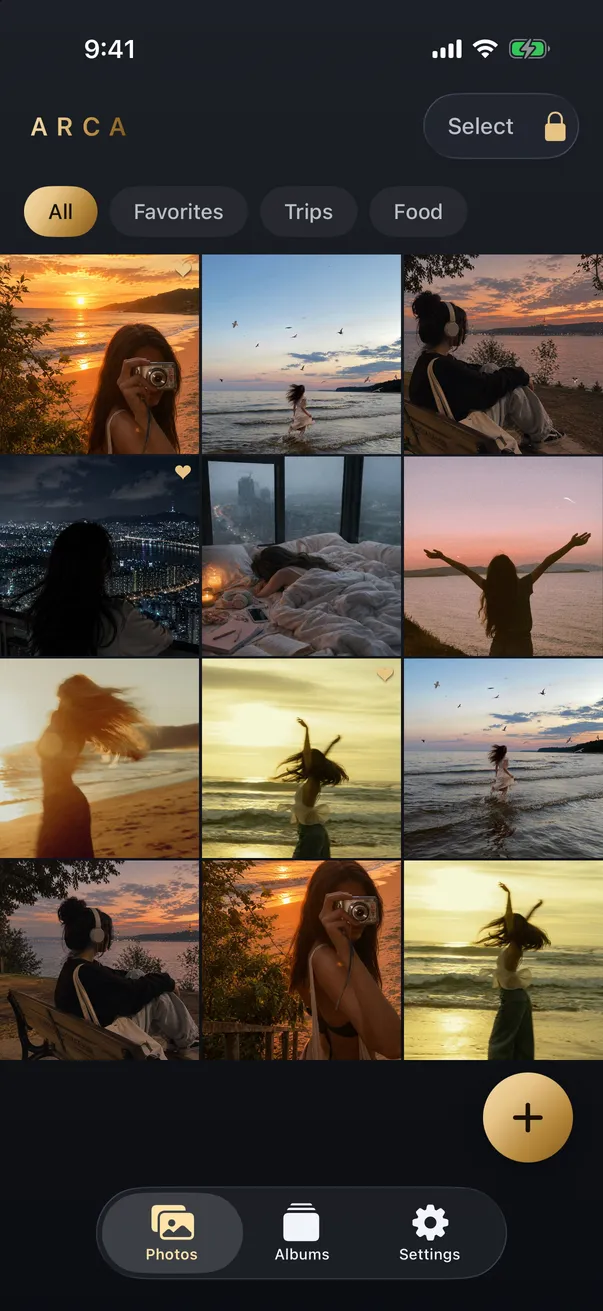
To hide a photo on iPhone, touch and hold it in Photos, choose Hide, and confirm. The Hidden album is locked by default on iOS 16 and later. For a separate password or storage outside your Photos library, consider a locked note or an encrypted vault instead.
How do you use the Hidden album?
Follow Apple’s Hidden album instructions for your iOS version. The basic steps are:
- Open Photos and select the image or video.
- Touch and hold it, or open its More menu, then choose Hide.
- Find Hidden under Utilities to view it again and authenticate when prompted.
Hidden items stay out of the main library view and Photos widgets. You can also hide the album from view in Photos settings. Menu placement varies by iOS version.
This is a useful built-in privacy control. It does not create a separate vault password: access is tied to device authentication. Hiding also does not stop iCloud Photos sync when that service is enabled. Review your iCloud photo settings if that is your concern.
When does a locked note make sense?
For a small collection of still images, a locked note is another option. Add the images to a note, open its menu, and choose Lock. You can use device authentication or a custom Notes password, depending on your settings.
Apple documents end-to-end encryption for secure notes and supported attachments, including images. This is real protection, not merely a way to disguise a folder. Some attachment types cannot be used in locked notes; Notes is not a replacement for a video library.
A separate password brings a separate recovery responsibility. Read Apple’s locked-notes guidance before choosing one. Copying an image into Notes also leaves the original in Photos unless you remove it yourself.
When would you choose a photo vault?
A vault is useful when you want media stored outside Photos, with its own unlock secret and tools for browsing a larger collection. Check the app’s encryption and backup design first; the label “vault” alone does not establish either. Our vault safety checklist explains what to ask.
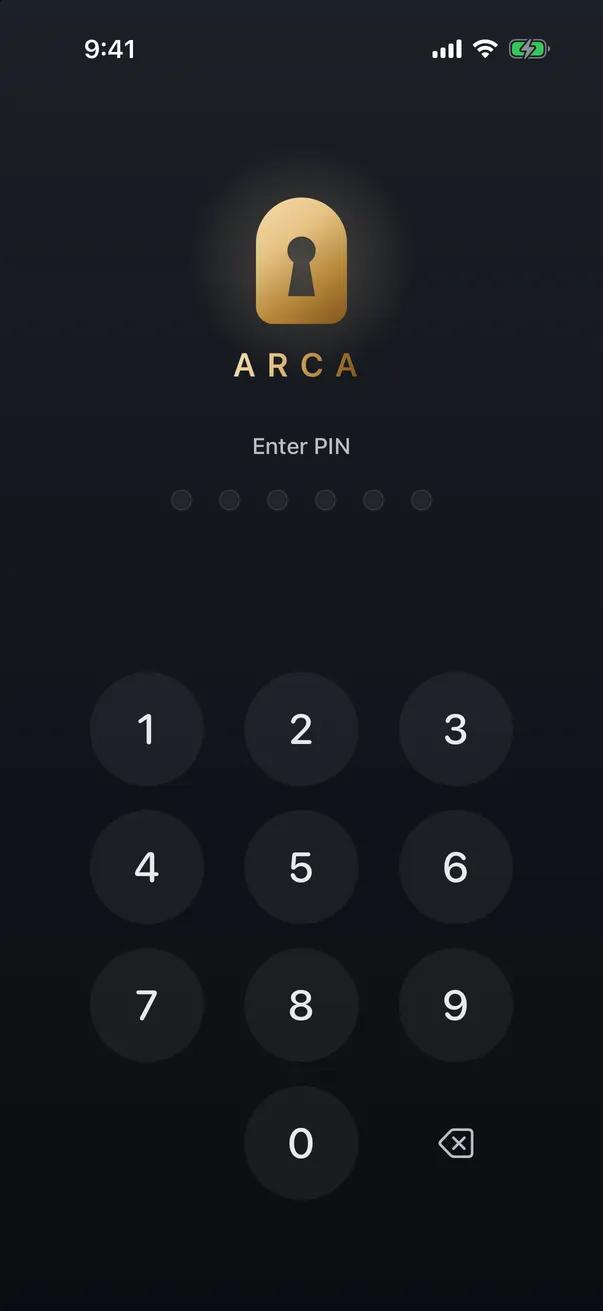
We make Arca. It stores imported media in an encrypted local library with a separate PIN and optional biometric unlock. It has no Arca account or automatic vault upload. Purchases, diagnostics, and optional link imports do use online services; the privacy policy explains those boundaries.
Try a few non-sensitive files before committing a collection. Check that you can import, reopen, play, export, and back up the media you need. A working recovery plan matters when a phone breaks or goes missing.
Which option fits your situation?
| Option | Useful for | Main consideration |
|---|---|---|
| Hidden album | Keeping selected items out of ordinary Photos browsing | Uses device authentication and remains in your Photos library |
| Locked Notes | Protecting a few still images with a locked note | Attachment limits and a separate password to manage if you choose one |
| Encrypted vault | A separate media library and unlock secret | You must understand its encryption, export, and recovery behavior |
| Ordinary Photos album | Organizing a collection | Adds no separate lock and does not hide its contents |
You do not need a vault just because a photo is personal. Start with the access controls that meet your needs. For iCloud storage, protection also depends on account settings: Apple’s iCloud security overview explains standard protection and Advanced Data Protection, which extends end-to-end encryption to Photos.
What happens to the originals?
A copy in Notes or a vault does not protect the original left elsewhere. Before deleting anything, verify the import and keep a backup you can recover. If you decide to remove originals, check Recently Deleted and shared copies as separate locations.
Deleting a photo in an iCloud Photos library affects that library on your other connected devices too. Take time to check which copy you are removing. None of these methods can recall a photo someone else has already saved, or protect an image while you are displaying it to them.
Try Arca on iPhoneFrequently asked questions
Is the iPhone Hidden album locked? +
Yes. On iOS 16 and later it is locked by default and requires authentication. Check your Photos settings if that protection has been disabled. Its access is tied to device authentication rather than a separate vault PIN.
Does hiding a photo stop iCloud sync? +
No. Hiding is not a sync setting. When iCloud Photos is enabled, the hidden state follows the photo across your devices. Review iCloud Photos separately if you want to change where copies are stored.
Should I delete originals after importing into a vault? +
Only after checking that the import works and that you have a usable backup. The original remains outside the vault's protection. Deleting from Photos can also delete the photo on devices using the same iCloud Photos library.
Keep reading
Guides
iPhone Hidden Album: What It Protects and What It Doesn't
The Hidden album provides a real lock. Understand its device authentication, iCloud settings, and the situations where a separate vault helps.
Privacy
Should You Keep Photos of Your Passport on Your Phone?
Almost everyone has a photo of an ID, a bank card or a document somewhere in their camera roll. The risk is real but it isn't the one the scare articles describe, and the fix takes about ten minutes.
Guides
Why Your iPhone Keeps Resurfacing Private Photos
Memories, widgets, Spotlight and the lock screen all pull from the same camera roll, which is why a photo you'd forgotten can appear while someone's watching. Here's how to quiet every surface, and what quieting them doesn't fix.
Your photos. Truly private.
Keep your photos in an encrypted vault on your iPhone, with no Arca account or automatic vault upload.
Free to download · iPhone · iOS 18+