
Guides
How to Lock the Photos App on iPhone (iOS 18)
iOS 18 lets you lock the Photos app behind Face ID in a few taps, so a borrowed phone can't open your camera roll. It's a genuinely useful step, with real limits. Here's how to do it, and what it does and doesn't protect.
On iOS 18 or later you can lock the Photos app behind Face ID in about ten seconds: touch and hold the Photos icon, tap Require Face ID, and confirm. After that, anyone opening Photos has to pass Face ID first. It’s a real improvement for casual privacy, but it has limits worth knowing before you rely on it.
How to lock the Photos app on iOS 18
Apple added built-in app locking in iOS 18, and it works on any app you can touch and hold on the Home Screen, Photos included. There’s nothing to set up in advance beyond already having Face ID (or a passcode) turned on. Here are the steps:
- Go to the Home Screen and find the Photos app.
- Touch and hold its icon until the quick-actions menu pops up.
- Tap Require Face ID (on older devices it reads Touch ID or Passcode).
- In the confirmation sheet, tap Require Face ID again.
That’s it. From now on, every time someone taps Photos, the phone asks for Face ID before it opens, and a failed scan falls back to your passcode. If you ever want to remove the lock, touch and hold the icon again and choose Don’t Require Face ID. Note that this needs iOS 18 or later; on older versions the option simply won’t appear.
One nice side effect: once an app is locked, its contents stop showing up in places you might not think about, such as Spotlight search results, Siri suggestions, notification previews, and CarPlay. So a locked Photos app is quieter as well as harder to open.
How to hide the Photos app too
Locking controls who can open the app; hiding goes a step further and removes the icon from your Home Screen entirely, tucking it into a Hidden folder at the bottom of the App Library. For most apps the flow is the same touch-and-hold menu: tap Hide and Require Face ID, authenticate, then confirm. The app vanishes from the Home Screen and from search, and only reappears when you open the Hidden folder and pass Face ID.
A couple of honest caveats. A handful of built-in apps can be locked but not hidden, so the Hide option isn’t guaranteed for every Apple app. And hiding the Photos app doesn’t stop the Camera from working or saving new shots; it only hides the app you browse them in. Hiding is really about tidiness and a lighter layer of discretion, not extra encryption.
Which apps can you lock, and which can’t?
The same touch-and-hold trick works on almost everything, so app locking isn’t just for Photos. The apps most worth locking are the ones holding information someone could stumble into on a borrowed phone:
- Photos. Your camera roll, the obvious one.
- Messages. Conversations, shared media, and verification codes.
- Notes. Where a lot of people keep sensitive lists and document scans.
- Mail. Effectively the reset-password hub for your whole digital life.
- Banking and health apps. Many add their own lock, but the system lock is a useful backstop.
- Third-party photo and cloud apps. Anything holding a copy of your images.
A few built-in apps can’t be locked, so don’t assume the option is everywhere. Apple leaves Camera, Calculator, Clock, Contacts, Find My, Maps, Shortcuts, and Settings unlockable, mostly because they need to work instantly or from the Lock Screen. That’s a reasonable trade-off, but it does mean Settings itself stays open, so app locking protects individual content apps rather than sealing the whole phone.
What locking the Photos app actually protects
Used for what it’s good at, app locking is genuinely worth turning on. The everyday risk it addresses is the most common one there is: you hand your unlocked phone to someone to show them a photo, look up a number, or let a kid play a game, and they swipe into Photos. With the app locked, that casual detour hits a Face ID prompt instead of your camera roll.
It’s a low-effort win for a real, frequent situation. You’re not defending against a forensics lab; you’re defending against the friend, coworker, partner, or child who has your unlocked phone in hand for a minute. For that, a Face ID gate on the Photos app is exactly the right size of protection, and the fact that it also strips your photos out of search and notifications is a quiet bonus.
What it does not protect
Here’s the part most how-to guides skip, and it matters. Locking the Photos app changes who can open one app on one device. It does not change where your photos live, how they sync, or which other apps can see them. Being precise about this is the difference between feeling private and being private.
| Does locking the Photos app… | Reality |
|---|---|
| Stop someone casually opening Photos on your unlocked phone | Yes, it asks for Face ID |
| Hide photos from Search, Siri, and notifications | Yes |
| Remove the photos from your library | No, they’re still there, unencrypted |
| Stop iCloud Photos from syncing them | No, they still sync to your other devices |
| Block other apps that already have photo access | No, Apple itself warns they can still show them |
| Apply across all your devices | No, it’s per-device and doesn’t sync |
That fifth row is the one people miss. When you lock Photos, iOS shows a small notice explaining that other apps with permission to your library may still display your images without any authentication. So a social app or photo editor you’ve granted access to can quietly surface the very photos you thought you’d locked away. It’s worth reviewing which apps can access your photos alongside locking the app, because the lock and the permissions are two separate doors.
Picture the everyday version of this. You lock Photos on your iPhone, but the same iCloud library is open on the iPad on your coffee table, and an editing app you tried once still has full access to your pictures. The lock did its job on one door while two others stayed wide open. That’s not a reason to skip locking; it’s a reason not to mistake it for encryption.
The built-in Hidden album isn’t the same thing
It’s easy to confuse app locking with the Photos app’s own Hidden album, but they solve different problems. The Hidden album just moves selected photos out of your main grid into a folder that is itself Face ID-locked by default. That’s convenient, but the photos are still inside the Photos app, still in your library, and still syncing through iCloud like any other picture.
In other words, the Hidden album hides photos from view; it doesn’t secure them. Anyone who gets into the Photos app, whether because it isn’t locked on another device or because they passed your Face ID, can open the Hidden album and see everything in it. It’s the same story with the Recently Deleted album, which is Face ID-locked by default too, yet is still just a folder of ordinary photos waiting out their 30 days before erasure. We go through the real limits of these features in why the iPhone Hidden album isn’t private. Locking the whole Photos app is a stronger move than relying on the Hidden album, but both share the same ceiling: the photos remain ordinary, unencrypted items in your library.
App lock vs an encrypted vault
So when is a locked Photos app enough, and when do you need more? The honest answer is that it comes down to what you’re protecting against. For keeping a borrowed phone out of your camera roll, app locking is the right tool and you can stop there. For photos that would genuinely harm you if they got out, it isn’t, because everything above still applies: the images stay unencrypted in a library that syncs to the cloud and is reachable by other apps.
An encrypted vault works on a different principle. Instead of putting a lock on the app that displays photos still sitting in your library, it moves the photos out of the library entirely and encrypts them in a separate container. We compare the two approaches in detail in iOS app lock vs a photo vault. The short version: a lock guards a door into a room full of your photos, while a vault takes the photos out of the room and into a safe only you can open.
Where Arca fits
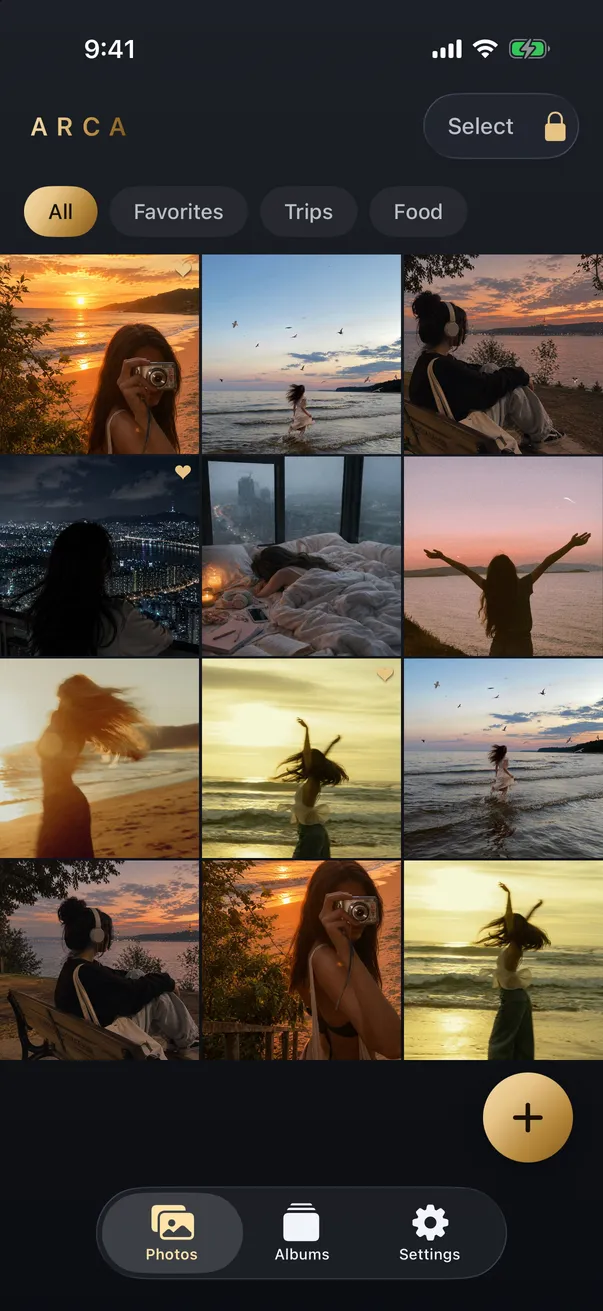
Arca is that vault. When you move a photo into it, the photo is encrypted on your device with AES-256-GCM, using a key derived from your PIN through Argon2id, and it lives in the app’s own container, separate from the Photos library, with no automatic vault upload or Arca account. Because those photos aren’t in your library, they don’t sync to iCloud, they don’t appear in other apps’ pickers, and opening the phone, or the Photos app, doesn’t open them. The vault has its own PIN, and Arca also offers a decoy vault for situations where you might be pressured to unlock.
To be clear about the limits, as always: a vault only protects the photos you actually move into it, and you have to delete the originals from your camera roll, or a copy stays behind. It isn’t a backup, so keep your own copy of anything you can’t afford to lose. Lock the Photos app for everyday discretion; use an encrypted vault for the handful of photos that truly need it. You can read more about the model on our security page.
Get Arca on the App Store to keep your most private photos in an encrypted vault with its own lock, separate from your camera roll.
Frequently asked questions
How do I lock the Photos app on my iPhone? +
On iOS 18 or later, go to your Home Screen and touch and hold the Photos app icon until the quick-actions menu appears. Tap 'Require Face ID' (it says Touch ID or Passcode on those devices), then confirm by tapping it again. From then on, opening Photos asks for Face ID first. To undo it, touch and hold the icon again and choose 'Don't Require Face ID.' The whole thing takes about ten seconds and needs no setup beyond having Face ID or a passcode already enabled.
Does locking the Photos app stop iCloud from syncing my photos? +
No. Locking the app only controls who can open that app on that one device. Your photos still live in your iCloud Photos library and still sync to every device signed into your Apple Account, where the Photos app may not be locked at all. App locking is about casual access on your phone, not about where your photos are stored or how they travel. If you want photos kept out of iCloud entirely, that's a separate setting, and keeping them truly private takes a separate tool.
Can someone still see my photos if the Photos app is locked? +
In some cases, yes. Apple itself warns that other apps with permission to your photo library can still show your images without asking for Face ID, so a locked Photos app doesn't hide those photos from, say, a social or editing app that already has access. The lock also doesn't help on your other synced devices, and anyone who can pass your Face ID or knows your passcode can open it. It stops casual snooping on your phone, which is worth having, but it isn't a vault.
Keep reading
Guides
Why Your iPhone Keeps Resurfacing Private Photos
Memories, widgets, Spotlight and the lock screen all pull from the same camera roll, which is why a photo you'd forgotten can appear while someone's watching. Here's how to quiet every surface, and what quieting them doesn't fix.
Guides
How to Hide Photos on iPhone: Hidden Album, Notes, or Vault
Use the locked Hidden album, a locked note, or a separate vault. Choose based on who can unlock your phone and where you want your photos stored.
Guides
iPhone Hidden Album: What It Protects and What It Doesn't
The Hidden album provides a real lock. Understand its device authentication, iCloud settings, and the situations where a separate vault helps.
Your photos. Truly private.
Keep your photos in an encrypted vault on your iPhone, with no Arca account or automatic vault upload.
Free to download · iPhone · iOS 18+