
Security
Is Your Photo Vault Included in Your iPhone Backup?
Every no-server app tells you to keep your own backup, and almost none explain what your iPhone backup already does or doesn't contain. The answer decides whether a restored phone gives you your vault back.
By default yes, because app data is backed up along with everything else. But developers can flag files to be left out, and some privacy apps do exactly that. So the honest answer is that it depends on the app, and the consequences run both ways: what’s excluded can’t be restored, and what’s included leaves the phone.
The short answer
Every app that keeps your data on-device and runs no server tells you the same thing: we can’t recover your files, so keep your own backup. Ours says it too, at the end of most articles on this site.
What almost nobody explains is what your existing backup already does. You’ve probably had iCloud Backup running for years. Does it already contain the vault? If your phone went under a bus tonight and you restored from that backup tomorrow, would your photos be there?
The answer decides whether “keep your own backup” is urgent advice or a formality. And it’s not the same answer for every app.
What an iPhone backup actually contains
Start with the general mechanics, because they’re more permissive than people assume.
An app on iOS gets its own container, a private folder structure the rest of the system can’t browse. Files an app writes into its Documents directory are included in backups by default, both iCloud Backup and the local kind you make through Finder or the Apple Devices app. So the starting position is that app data travels.
What doesn’t travel is a shorter list. Things already in iCloud aren’t duplicated into the backup, Apple Pay information isn’t included, and Face ID, Touch ID and passcode data are never in there at all.
Local backups add a wrinkle. They aren’t encrypted unless you turn on the “Encrypt local backup” option and set a password. Switching that on doesn’t only scramble the file. It also makes the backup more complete, adding saved passwords, Wi-Fi settings, website history, health data and call history, none of which are in an unencrypted local backup.
The Keychain is the odd one out. It’s physically present in an unencrypted backup, but protected by a hardware key, so it can’t be decrypted anywhere except the device that made it. With an encrypted backup and its password, it moves to a new device properly.
Why an app’s data might not be in there
Here’s the part that makes vaults different from ordinary apps.
iOS gives developers a way to opt files out. Setting a resource flag on a file, or on a whole directory, tells the system to leave it out of every backup. Apple documents it as a way to keep re-downloadable content out of people’s backups, so a streaming app doesn’t bloat your iCloud storage with cached video.
Privacy apps sometimes use the same flag for a different reason: to guarantee the encrypted files never leave the device by any route, including a backup. That’s a defensible choice, and it’s a real one — it means the app has decided that a copy landing in iCloud is a bigger problem than a hard recovery story.
The result is that two vault apps sitting next to each other on your home screen can behave completely differently on restore, and neither one is obliged to tell you which it does.
The two questions that actually matter
Split the problem in half. They pull in opposite directions, which is why the answer isn’t obviously good or bad.
Recovery. If the vault’s files are excluded, a restored phone gives you the app with an empty vault. Everything you moved in is gone, and there’s nobody to appeal to, because a no-server app has no copy. This is the failure people actually experience.
Exposure. If the files are included, a copy of them sits in your iCloud account. They’re still encrypted, so this isn’t a disclosure of your photos, but it’s a copy in someone else’s infrastructure, which may be exactly what you were trying to avoid.
Notice that you can’t have both. Wanting the files nowhere but the phone means accepting that a lost phone loses them. Wanting a safety net means accepting a copy exists somewhere. Any app claiming to give you both without a trade is glossing over something.
iCloud backup versus an encrypted computer backup
| iCloud Backup | Local backup, encrypted | Local backup, unencrypted | |
|---|---|---|---|
| Includes app data by default | Yes | Yes | Yes |
| Respects an app’s exclusion flag | Yes | Yes | Yes |
| Who holds the keys | Apple, unless ADP is on | You, via your password | No password set |
| Includes Keychain usably | Yes | Yes | No, device-locked |
| Includes health and call history | Yes | Yes | No |
| Needs a computer | No | Yes | Yes |
The row that matters most for privacy is the key one. Without Advanced Data Protection, Apple holds the keys to your iCloud Backup and can be compelled to produce its contents. Turning ADP on makes the backup end-to-end encrypted, which is the single highest-value change most people can make here, and we covered its scope in what iCloud Advanced Data Protection does and doesn’t do.
Even without ADP, a vault’s files in a backup are ciphertext. Apple producing them would produce encrypted blobs, not your photos. That’s the difference between a copy existing and a copy being readable, and it’s worth keeping the two apart when you think about this.
How to find out, and how to test it
Don’t reason about this from first principles. Check.
- Read the app’s own documentation for the words backup, export or restore. An app that has thought about it will say so plainly.
- Look for an export feature. Its presence usually tells you the developer expects device backups not to be your recovery path.
- Check your iCloud storage breakdown. Settings, your name, iCloud, Manage Account Storage, then Backups. You can see which apps are included in the backup and roughly how much space each takes. An app holding gigabytes of photos that shows a trivial size is a strong hint its data is excluded.
- Test a restore if the stakes are high. Awkward, but it’s the only real proof. Most people won’t, which is why option five exists.
- Use the app’s export and verify the file opens. This is the reliable path, because it doesn’t depend on what the backup does at all.
Step three is the quick one and it catches most cases in about thirty seconds.
The other way people lose a vault
Backups get the attention, but there’s a quieter failure that happens more often, and it has nothing to do with restoring a phone.
Deleting an app on iOS deletes its container. Every file the app was keeping, including an encrypted vault, goes with it. There’s no thirty-day grace period like Recently Deleted in Photos, and reinstalling from the App Store gives you a clean install rather than your data back. People do this while clearing space, or in a tidying mood, and discover the consequence later.
iOS has a second option that behaves completely differently, and the names don’t make the difference obvious. In Settings, under General and then iPhone Storage, tapping an app offers both Offload App and Delete App:
- Offload App removes the application binary but keeps its documents and data. Reinstalling restores the app and your files come back. This is the safe one.
- Delete App removes the binary and the data together. Nothing survives.
There’s also an automatic version. Offload Unused Apps, in Settings under App Store, does the offloading for you when storage runs low, and it’s on by default for a lot of people. That setting is harmless for a vault, since offloading preserves data. It’s the manual Delete that costs you.
The practical rules are short. Never delete a vault app to free space, offload it instead. Never delete it before a phone migration until you’ve confirmed the files arrived on the new device. And if you’re handing an old phone on, export first, then delete deliberately, because at that point deletion is what you want.
This is also the reason an export matters even for people who never lose a phone. A backup protects you against hardware failure. Nothing protects you against your own thumb except a copy stored outside the app.
The honest trade in a no-server app
It’s worth naming the thing that makes this whole topic awkward.
A no-server design removes an entire category of risk. There’s no account to breach, no infrastructure holding your files, nothing for the company to hand over, and no subscription lapse that locks you out of your own photos. Those are real benefits, not marketing.
The cost is that recovery becomes your job. A cloud service can restore your account from a forgotten password because it holds the keys. That’s the same property that makes it able to disclose your files. You can’t remove one without removing the other.
So the right way to use any tool like this is to accept the job it hands you. Take the export, put it somewhere durable, and check occasionally that you can still open it. The design gives you control, and control includes the part where nobody else is keeping a spare copy for you.
Where Arca fits
Arca is built on the no-server side of that trade. Photos you move in are encrypted individually with AES-256-GCM, with the key derived from your PIN using Argon2id, a deliberately slow function that makes guessing the PIN expensive rather than instant. Everything stays in the app’s container on your device, with no account and no infrastructure behind it. The full model is on our security page.
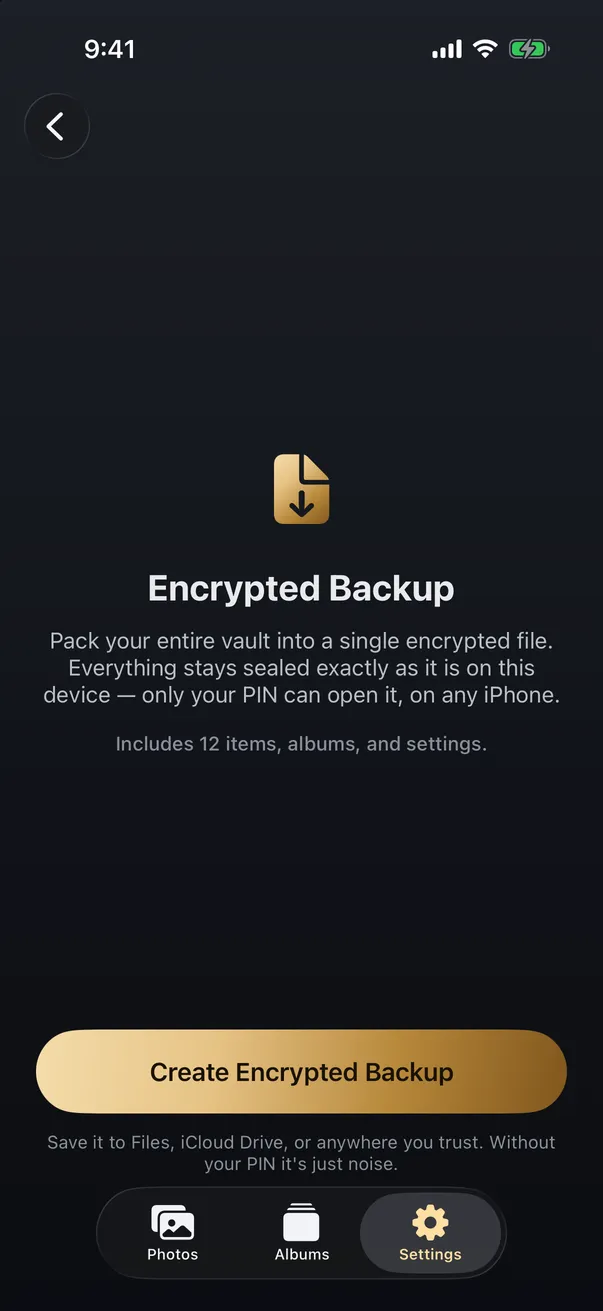
For the recovery half, Arca gives you an explicit export rather than leaving you to hope about backup behaviour. The app produces a single .arcavault file containing your encrypted photos, videos, thumbnails and metadata, sealed with the same protection as the vault. It’s ciphertext, so it’s useless to anyone without your PIN, and you decide where it lives — Files, iCloud Drive, an external drive, wherever. Restoring it onto a new phone brings your originals back at full quality. We walked through that in how to back up private photos without trusting the cloud.
The limits, stated plainly as always. Arca protects the photos you actually move into it, not the ones still in your camera roll. It protects them at rest, not while the vault is open in front of someone. And because we hold no recovery key, we genuinely cannot recover your photos if you forget your PIN or lose your only copy, which is exactly why the export exists.
Make the export today rather than the day you need it. That’s the whole lesson, and it applies to every app that promises nothing leaves your phone.
Get Arca on the App Store to keep your private photos encrypted with AES-256-GCM on your device, with no automatic vault upload.
Frequently asked questions
Does an iPhone backup include data from apps like photo vaults? +
By default yes. Files an app stores in its Documents folder are included in both iCloud and computer backups. But developers can mark files or a whole folder as excluded, and some privacy apps deliberately do, so the answer varies app by app. Don't assume either way — test it before you rely on it.
If my vault is in an iCloud backup, can Apple see my photos? +
Not the contents. A well-built vault stores its files already encrypted, so what travels into a backup is ciphertext that needs your PIN to open. What does change is where a copy exists. If your mental model was that nothing ever leaves the phone, a backup is worth knowing about, and turning on Advanced Data Protection makes iCloud Backup end-to-end encrypted anyway.
How do I know whether my vault would survive a restore? +
Test it rather than trusting a support page. Make a backup, then check the app's own documentation for an export or backup feature. The reliable approach with any no-server app is to use its own export, save that file somewhere you control, and confirm you can open it. That works regardless of what the device backup does.
Keep reading
Security
Forgot Your Photo Vault Password? What Recovery Means
It depends on what the password was doing. If the app only checked it at the door, a reset is usually possible. If it is the key that encrypts your photos, nobody can reset it, the developer included. How to tell which you have, what to try in order, and exactly what Arca can and cannot do.
Privacy
What Happens to Your Photos If You Delete a Photo Vault App?
The app's data goes with the app. Vault photos live in the app's own container, not in Photos, so removing the app removes them. Whether you get them back depends on something you did before you tapped delete.
Guides
How to Move Your Private Photos to a New iPhone
iCloud photos move themselves to a new iPhone, but that means they live in the cloud. Photos kept off the cloud, or in a vault, need a deliberate local move. Here's how to transfer private photos without exposing them.
Your photos. Truly private.
Keep your photos in an encrypted vault on your iPhone, with no Arca account or automatic vault upload.
Free to download · iPhone · iOS 18+