
Guides
How to Send Private Photos Safely (and Keep Control)
The safest way to send a private photo is an end-to-end encrypted app, with the location data stripped first. But the real limit isn't encryption, it's that once a photo leaves your phone, the person you sent it to controls it.
To send private photos safely, use an end-to-end encrypted app like iMessage or Signal, and strip the location data first. But keep the real limit in mind: once a photo leaves your phone, the recipient controls it. Encryption stops strangers from intercepting it on the way; it can’t stop the person you sent it to from saving or sharing it.
The safest way to send a private photo
If you want the short version, here it is. Send through an app that encrypts the photo end to end, so it’s scrambled the entire way and only the two of you can open it. Remove the hidden location data before you send. And only send to someone you’d trust to keep it, because no technology can take a photo back once they have it.
That last point is the one most guides skip, and it’s the most important. Encryption is genuinely good at one job: keeping the photo private while it travels from your phone to theirs. It does nothing about what happens after it arrives. Getting this distinction straight is what separates feeling safe from actually being careful.
What “safely” actually means here
There are really two different risks when you send a photo, and they need different answers.
The first is interception, someone grabbing the photo while it’s in transit: on public Wi-Fi, on a server along the way, or in a cloud backup. End-to-end encryption closes this gap almost completely. The photo leaves your phone already scrambled and stays that way until it reaches the recipient, so anyone in the middle sees only noise.
To make that concrete: send a photo through an encrypted app while you’re on a café’s public Wi-Fi, and someone snooping that same network sees only scrambled data, not your picture. Send the exact same photo as a plain SMS or an ordinary email, and the protection you were counting on simply isn’t there. The method you choose, not the photo itself, decides whether that in-transit gap is open or closed.
The second risk is the recipient. Once the photo is on their device, they can save it, forward it, back it up to their own cloud, or show it to someone. No encryption touches this, because the person you chose to send it to is supposed to be able to see it. This is why “how do I send this securely” quietly becomes “how much do I trust this person,” and it’s a question worth asking before you attach the file.
Use an end-to-end encrypted app
For the transit part, the tool matters. Some ways of sending a photo protect it end to end; others leave it readable on a server. Here’s how the common options compare.
| Method | End-to-end encrypted? | Good to know |
|---|---|---|
| iMessage (blue bubble) | Yes | Turn on Advanced Data Protection to cover iCloud backups too |
| Signal | Yes, always | Minimal metadata; offers disappearing messages |
| SMS / MMS (green bubble) | No | Sent in the clear; avoid for anything private |
| Usually no | Most email isn’t end-to-end encrypted | |
| Social media DMs | Usually no | Often stored readable on the platform’s servers |
Between Apple users, iMessage encrypts both messages and attachments end to end, and switching on Advanced Data Protection means even your encrypted iCloud backups stay out of Apple’s reach. Signal goes a step further on privacy by collecting almost nothing about you: it keeps only your phone number and the date you last connected. Either is a solid choice. The weakest common option is a plain SMS, the green bubble, which travels unencrypted and should never carry anything you’d mind a stranger seeing.
There’s an easy way to check on the iPhone: if the message bubble is blue, you’re on iMessage and it’s encrypted; green means it fell back to SMS and it isn’t. This picture is slowly changing, too. Apple has been testing end-to-end encrypted RCS, a newer standard that would finally bring encrypted messaging between iPhone and Android, but until it’s fully rolled out, a cross-platform text you send today may still travel unprotected. When you’re not sure, having both people use the same encrypted app removes the guesswork entirely.
Avoid sending private photos these ways
A few habits quietly undo all your care. If a photo is genuinely private, skip these:
- Plain text message (SMS/MMS). Not encrypted, and it can sit unprotected on carrier systems.
- Regular email. Most providers don’t encrypt end to end, so the image can be readable on a server.
- A public or link-shared cloud folder. A “anyone with the link” URL can be forwarded or guessed far more easily than people expect.
- Social media direct messages. Convenient, but usually stored in readable form on the company’s servers.
- AirDrop to “Everyone” in a crowd. Handy for one trusted person nearby, risky when your device is open to strangers.
The thread running through all of these is the same. Each one trades a little convenience for a copy of your photo sitting somewhere readable, on a carrier’s system, an email server, or a platform’s storage, where you have no visibility and no delete button that truly works. An encrypted app isn’t meaningfully harder to use, and it closes that gap. If a photo matters enough to make you hesitate, it’s worth the extra few seconds to send it the safe way.
Strip the hidden data before you send
A photo carries more than the image. By default it can include EXIF metadata: the exact GPS coordinates where it was taken, the date and time, and the device. Sending a “harmless” picture can hand over your home address without you realizing it.
The fix is quick. On the iPhone, open the photo in the Photos app, tap the share sheet, and use Options at the top to turn off Location before you send. For anything sensitive, make stripping location a reflex. We walk through every method in detail in how to remove location data from your photos, and it’s the single easiest habit to add here.
Location is the most sensitive piece, but not the only thing worth a glance. The timestamp can reveal when you were somewhere, and if the photo is a screenshot, the edges of the frame can quietly carry names, addresses, or account details you forgot were there. A quick look at the whole image before you send, not just the subject, catches more than any automatic tool.
Disappearing messages help, but don’t over-trust them
Apps like Signal let you set messages to delete themselves after anywhere from a few seconds to several weeks, erasing the photo from both phones when the timer runs out. It’s a genuinely useful feature, because it limits how long a copy sits around waiting to be found later. iMessage doesn’t offer this yet, which is one practical reason people reach for Signal.
But be clear about what disappearing messages can and can’t do. They stop a photo from lingering; they do not stop the recipient from acting while it’s visible. A screenshot, a screen recording, or a second phone pointed at the screen all defeat the timer instantly, and a notification preview can briefly show the image on a lock screen before anyone opens the app. Use disappearing messages as a tidy-up tool, not as a guarantee that the photo is gone.
You’ll see the same idea in the “view once” photo features in apps like WhatsApp and Instagram, where an image is meant to be opened a single time and then vanish. They share the exact same ceiling: the app can block a second official view, but it can’t block a screenshot or another camera, and a few implementations have leaked the images through backups or bugs over the years. Treat view-once as friction that slows a casual save, not as a lock.
What actually happens after you hit send
It’s worth sitting with the honest version for a second, without alarm. When you send a private photo, you are making a copy on someone else’s device that you no longer control. If their phone has a weak passcode, syncs to a cloud you know nothing about, or ends up in someone else’s hands, your photo is exposed through no fault of your own encryption.
Their security quietly becomes yours, too. A photo you sent is only as safe as the least careful device it lands on. If the other person leaves their phone unlocked on a desk, reuses a simple passcode, or has cloud backups you know nothing about, none of your care on the sending side helps. None of this means you should distrust people. It just means that the moment you press send, you’re handing your privacy over to their habits, and it helps to see that clearly.
That isn’t a reason to be paranoid. It’s a reason to be deliberate. Send private photos to people you trust, using an encrypted app, and only when you actually need to. The most secure photo is often the one you decide not to send at all, and choosing where a sensitive photo lives in the first place is a bigger lever than how you transmit it, which we cover in where to store private photos.
Where Arca fits: protect the copy you keep
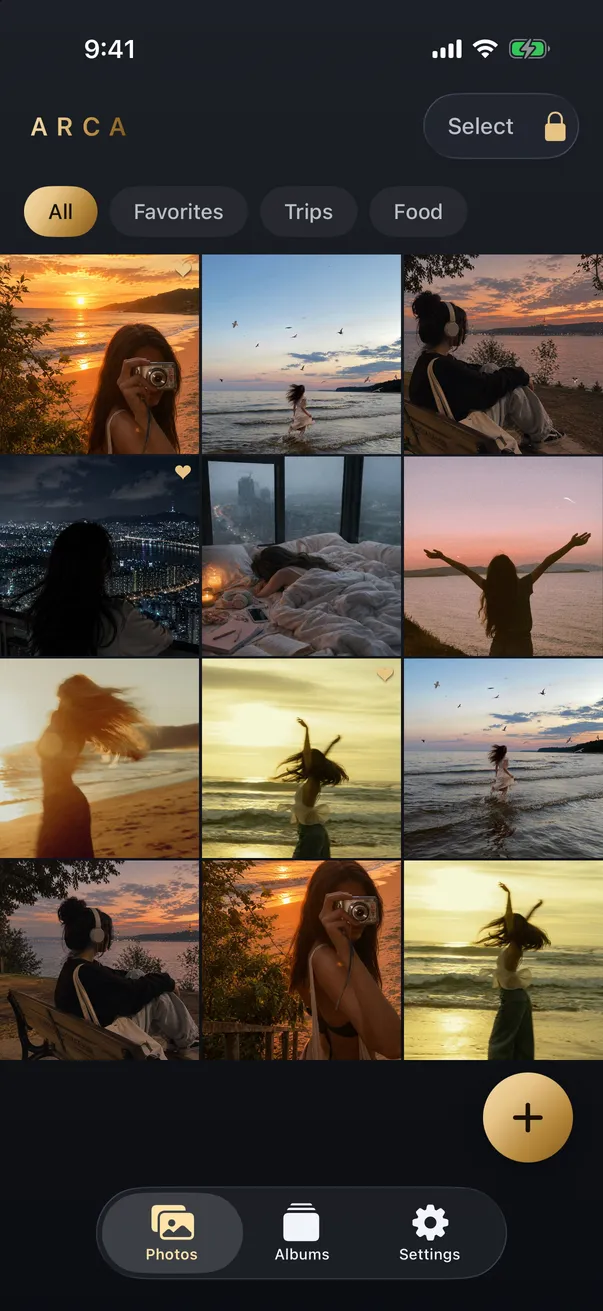
Sending is only half the story. The other half is the master copy that stays with you, and that’s the part an encrypted vault is built for. Arca keeps your private photos in an on-device vault, encrypted with AES-256-GCM using a key derived from your PIN through Argon2id, in its own container separate from the Photos library. Arca requires no account and does not automatically upload your vault library.
To be precise about what that does and doesn’t do: a vault protects the copy on your phone, and keeps sensitive photos out of the shared library that any messaging app can pull from when you attach a file. It does not follow a photo after you send it, and it isn’t a secure-messaging tool. Think of it as controlling the source. You keep the private originals locked down and out of easy reach, and you decide, deliberately and rarely, when a copy leaves for someone you trust. You can read more about the model on our security page.
The takeaway is simple. Encrypt what you send, strip the location first, and remember that the person on the other end becomes the real guardian of that photo. Send less, send carefully, and keep the originals somewhere only you can open.
Frequently asked questions
Is it safe to send photos over iMessage? +
Mostly yes, with one catch. Between Apple users, iMessage encrypts messages and attachments end to end, so no one in the middle, including Apple, can see them. If you also turn on Advanced Data Protection, your iCloud backups of those messages are covered too. The catch is the green bubble: if the message falls back to SMS because the other person isn't on iMessage, it is not encrypted. And in every case, the person you sent it to can still save or forward the photo.
What is the most secure app to send photos? +
Signal is the usual answer. Every conversation is end to end encrypted by default, it stores almost no metadata about you, just your phone number and last connection date, and it offers disappearing messages. iMessage is also strong, especially with Advanced Data Protection switched on. The best app for you is whichever encrypted one both people will actually use, since a photo is only as protected as the app on the other end.
Can I send a photo that can't be screenshotted or saved? +
Not reliably. Disappearing messages and view-once features reduce the copies left lying around, but none of them can stop a determined recipient from taking a screenshot, or simply photographing the screen with another phone. Treat any photo you send as something the other person could keep forever. If that thought changes your mind about sending it, that instinct is worth listening to.
Keep reading
Privacy
Do Live Photos Record Sound?
A Live Photo is a still image plus about three seconds of video, and that clip carries an audio track. Here's what travels when you share one, and how to send just the picture.
Privacy
Your Photo Widget Is Showing People Your Photos
A Photos widget picks from your whole library and puts the result on a screen anyone can see from across a table. Here's how to narrow what it draws from.
Guides
How to Find and Take Back Photos You've Shared
Shared albums outlive the occasion, iCloud links run on a 30-day clock, and most people have no idea what's still open. Here's how to audit all of it, and the one thing revoking can't undo.
Your photos. Truly private.
Keep your photos in an encrypted vault on your iPhone, with no Arca account or automatic vault upload.
Free to download · iPhone · iOS 18+