
Guides
How to Move Your Private Photos to a New iPhone
iCloud photos move themselves to a new iPhone, but that means they live in the cloud. Photos kept off the cloud, or in a vault, need a deliberate local move. Here's how to transfer private photos without exposing them.
Moving photos to a new iPhone is easy if they’re in iCloud, which syncs them automatically, but that convenience means they live in the cloud. Photos you keep off the cloud, or in a vault, don’t move on their own; you transfer them deliberately with a local method, then wipe the old phone. Here’s how, without exposing them.
The easy case: iCloud photos move themselves
If your photos are in iCloud Photos, migration is barely a task. Sign the new iPhone into the same Apple Account, turn on iCloud Photos, and your whole library downloads automatically. Quick Start, Apple’s device-to-device setup, can bring everything else across at the same time. For most people, this is the entire process, and it’s genuinely convenient.
The thing worth noticing is the trade-off hiding inside that convenience. The reason those photos move themselves is that they already live on Apple’s servers, syncing to every device on your account. That’s fine for ordinary snapshots, and iCloud is reasonably secure, especially with Advanced Data Protection turned on. But it does mean the automatic migration you’re enjoying is a symptom of the photos being in the cloud in the first place, which is exactly what some photos shouldn’t be.
So the easy case is easy precisely because the privacy decision was already made, in favor of cloud storage. The harder, more deliberate work is for the photos where you didn’t make that choice.
Transfer methods, ranked by privacy
When the photos matter, how you move them matters. Not every transfer method keeps them off outside servers, so it’s worth knowing which is which before you start.
| Method | Where the photos travel | Privacy |
|---|---|---|
| Quick Start | Device to device, locally | Best; nothing leaves your two phones |
| AirDrop | Device to device, locally | Great for moving select photos |
| Cable to your computer | Phone to a computer you control | Local; you hold the only copy |
| iCloud Photos | Through Apple’s servers | Convenient, but stored in the cloud |
| Email, messaging, third-party cloud | Through outside servers | Avoid for anything sensitive |
The pattern is simple: the local, device-to-device methods at the top keep your photos on hardware you own, while the ones lower down route copies through servers. For sensitive photos, stay in the top three. AirDrop in particular is ideal when you only need to move a specific set of images rather than a whole library, and it sends them at full quality with nothing touching the cloud.
The harder case: photos that aren’t in iCloud
Some of your photos, by design, aren’t in iCloud at all. Maybe you deliberately keep certain images off cloud sync, or store them in a vault app that lives only on the device. These are usually the private ones, and they’re exactly the photos an automatic migration will silently leave behind, because there’s no cloud copy for the new phone to pull down.
This isn’t a bug; it’s the point. A photo that was never uploaded can’t sync itself to a new device, which is the same property that keeps it private in the first place. If you keep sensitive photos out of iCloud, whether loose on the device or in a vault, you’ve traded automatic convenience for control, and that trade only pays off if you handle the move yourself rather than assuming the new phone will have everything.
The practical upshot is a short manual step: get those photos across using a local method, put them back where they belong on the new phone, and make sure nothing sensitive is left exposed along the way. The next sections walk through it, first for loose photos, then for a vault.
Moving select photos with AirDrop or Quick Start
If you just have a handful of private photos to move, not a whole vault, two local tools cover it. During the new phone’s initial setup, Quick Start transfers everything from the old device over a direct wireless link with no cloud involved, so private photos on the old phone come across with the rest.
If you’d rather move a specific set on your own terms, AirDrop is the tool. On both phones, open Control Center and turn on AirDrop, setting it to Contacts Only, or Everyone for ten minutes and then off again afterward. Select the photos in the share sheet, tap AirDrop, and choose your new phone; the images jump directly between the two devices at full quality, with nothing routed through a server. For anything sensitive, this beats emailing photos to yourself or dropping them in a shared cloud folder, both of which leave a readable copy behind on someone else’s system.
How to move a photo vault to a new phone
A vault with no server won’t appear on your new phone by magic, so you migrate its contents by hand. It’s a handful of steps, and the goal throughout is to never let the photos touch a cloud or an outside server:
- Export the photos from your old vault. Move the ones you’re keeping out of the vault temporarily, into the camera roll or a local export.
- Transfer them locally. Use Quick Start, AirDrop, or a cable, never an email or a cloud upload, so no copy lands on a server.
- Set up the vault on the new phone and re-import. Add the photos back into the vault, behind its own PIN, on the new device.
- Delete the temporary copies. Remove the exported photos from the camera roll on both phones so nothing sensitive sits out in the open.
- Erase the old phone. Before you sell it or pass it on, wipe it fully.
Done in order, the photos travel only between your two devices and end up sealed in the vault again, with no lingering copies. The one moment to be careful is the middle: while the photos are exported and in transit, they’re briefly ordinary images, so do the move in one sitting and clean up immediately.
Don’t forget the old phone
It’s easy to focus entirely on the new phone and forget that the old one still holds everything, often for weeks before you get around to it. That gap is a real risk. An old iPhone sitting in a drawer, or worse, sold or handed on without being wiped, is a copy of your photo library, including whatever private images you just carefully migrated.
So the migration isn’t finished until the old device is dealt with. Sign out of your Apple Account, then erase it completely with Settings, General, Transfer or Reset iPhone, Erase All Content and Settings, which cryptographically wipes its data. We go through the full process, and the order that matters, in how to wipe your iPhone before selling it. Until that’s done, treat the old phone as if it still contains everything, because it does.
Migration is a good moment to prune
A new phone is also the natural time to stop carrying photos you don’t actually need. Most libraries quietly accumulate sensitive images, old ID documents, screenshots of private information, things captured once and never deleted, that follow you from device to device for years. Before you migrate, it’s worth a quick pass to remove what no longer needs to exist. Every private photo you don’t carry forward is one fewer to protect, transfer, and worry about, and the safest photo of all is the one you chose not to keep. Fewer copies in fewer places is the quiet foundation under every other privacy step, and a phone upgrade is the rare moment when you’re already going through everything anyway.
The honest gap in vault migration
To be straight about the limits: there’s a brief window in any vault migration where the photos are exposed. To move them off the old phone, you have to take them out of the vault, and while they sit in the camera roll or a transfer, they’re ordinary, readable images with none of the encryption around them. That’s unavoidable with a no-server vault; the same absence of a cloud copy that protects your privacy is what forces a manual, momentarily-unprotected move.
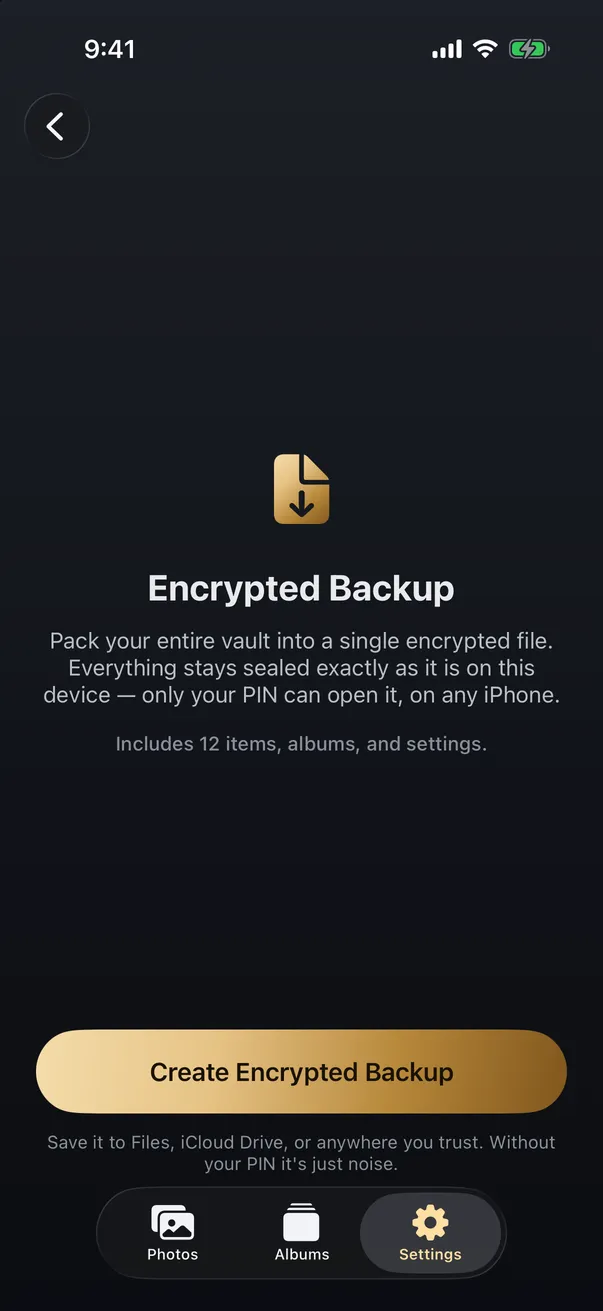
The way to handle it is simply to be deliberate: do the transfer in one focused session, use only local methods, and delete the temporary copies the moment the photos are safely back in the vault on the new phone. It’s also worth remembering that a vault is not a backup. Because there’s no hosted copy of the vault, if you skip the migration and wipe the old phone, those photos are gone, so keep your own separate copy of anything irreplaceable before you start. This on-device trade-off is the same one we cover in on-device vs cloud encryption for photos.
Where Arca fits
Arca is an on-device vault, which is why its photos don’t ride along with an iCloud migration, and why moving them is the deliberate, local process above. Inside the vault, each photo is encrypted with AES-256-GCM using a key derived from your PIN through Argon2id, in the app’s own container without an Arca account or automatic vault upload. That’s the whole reason the migration is manual: Arca has no automatic vault sync to restore from.
When you set Arca up on the new phone, you re-import your photos and they’re sealed again behind your PIN, and Arca also offers a decoy vault for situations where you might be pressured to unlock. To keep the earlier caveats in view: the vault only protects what’s inside it, you should delete the exported originals once the move is done, and it isn’t a backup, so keep a separate copy of anything you can’t lose. Deciding where those photos should live in the first place is worth its own thought, which we cover in where to store private photos. You can read more about the model on our security page.
Get Arca on the App Store to keep your private photos encrypted on your device, so a new phone means a deliberate, local move rather than a copy sitting in the cloud.
Frequently asked questions
Do my photos transfer to a new iPhone automatically? +
The ones in iCloud Photos do. As soon as you sign your new iPhone into the same Apple Account and turn on iCloud Photos, your library syncs down automatically. What doesn't move on its own are photos kept only on the device, or inside a vault app that has no server. Those have no cloud copy to sync, so you have to move them deliberately. That's the trade-off of keeping photos off the cloud: more privacy, but no automatic migration.
How do I move photos from a photo vault to a new phone? +
Because a no-server vault doesn't sync, you move its contents by hand. Export the photos you're keeping out of the old vault, transfer them locally with Quick Start, AirDrop, or a cable rather than a cloud upload, then set up the vault on the new phone and re-import them. Finally, delete the temporary copies from both camera rolls and erase the old phone. It's a few steps, but everything stays on your own devices the whole time.
What's the most private way to transfer photos between iPhones? +
Local, device-to-device methods. Quick Start during setup, AirDrop for select photos, or a cable to your own computer all move photos directly between devices without putting a copy on anyone's server. Avoid email, messaging apps, and third-party cloud services for sensitive photos, since those leave readable copies on outside servers. iCloud is convenient and reasonably secure, but it does mean the photos pass through and rest in the cloud.
Keep reading
Privacy
What Happens to Your Photos If You Delete a Photo Vault App?
The app's data goes with the app. Vault photos live in the app's own container, not in Photos, so removing the app removes them. Whether you get them back depends on something you did before you tapped delete.
Guides
How to Back Up Private Photos Without Trusting the Cloud
You can keep a real backup of your private photos without handing them to a cloud provider. The trick is to encrypt first, then store anywhere.
Security
Forgot Your Photo Vault Password? What Recovery Means
It depends on what the password was doing. If the app only checked it at the door, a reset is usually possible. If it is the key that encrypts your photos, nobody can reset it, the developer included. How to tell which you have, what to try in order, and exactly what Arca can and cannot do.
Your photos. Truly private.
Keep your photos in an encrypted vault on your iPhone, with no Arca account or automatic vault upload.
Free to download · iPhone · iOS 18+