
Privacy
How to Protect Your Photos If Your iPhone Is Lost or Stolen
Find My and Stolen Device Protection guard your account, but your camera roll still opens with your passcode. Here is how to actually protect private photos if your phone is taken.
If your iPhone is lost or stolen, do three things in order: mark it as lost in Find My, change your Apple Account password, and erase it remotely once you have given up on getting it back. That protects your accounts. Your photos are a separate problem, because the camera roll opens with your passcode, not your face.
Lost, stolen, or shoulder-surfed: three different problems
People lump these together, but they call for different responses, and the worst case is not the one most people picture.
A lost phone is usually a low-stakes privacy event. Whoever finds it almost never has your passcode, so Face ID and a strong passcode keep them out while you locate or erase it.
A stolen-for-resale phone is similar. Most thieves want to wipe and sell the hardware. They are racing your Activation Lock, not browsing your camera roll.
The real privacy threat is the shoulder-surfed passcode: someone watches you type your passcode in a bar or on the subway, then takes the phone. Now they have the one secret that unlocks everything. This specific pattern is exactly why Apple built Stolen Device Protection, and it is the case the rest of this guide takes seriously.
Knowing which situation you are in tells you how worried to be, and where the built-in protections stop helping.
The first hour: Find My, Lost Mode, and remote erase
The moment you realize the phone is gone, the priority is your accounts, not the device. Move through this list from another device or a browser at icloud.com.
- Mark As Lost in Find My. This locks the phone, suspends Apple Pay, shows a custom message, and keeps location tracking active. It is reversible if you find the phone in a coat pocket.
- Change your Apple Account password. This cuts a thief off from iCloud on other devices and from making account changes.
- Change passwords for anything important you stay logged into, starting with email, since email is the reset path to everything else.
- Report it to your carrier and, if it was stolen, to the police with the serial number.
- Erase remotely, last. Once you are sure the phone is not coming back, Erase This Device wipes it. Do this last, because erasing typically ends your ability to track it.
None of these steps depends on a thief failing to know your passcode. That is the point: they protect the account layer even in the worst case. The photo layer needs a different tool.
Stolen Device Protection, now on by default
Stolen Device Protection is Apple’s answer to the stolen-passcode problem, and as of iOS 26.4 it is turned on by default for everyone rather than buried in Settings. When your iPhone is somewhere unfamiliar, it adds friction to the actions a thief would use to take over your digital life.
| Action away from a familiar place | What Stolen Device Protection requires |
|---|---|
| View saved passwords and passkeys | Face ID or Touch ID, no passcode fallback |
| Use a saved payment method in Safari | Face ID or Touch ID |
| Change your Apple Account password | Biometric, then a one-hour delay, then biometric again |
| Turn off Find My or Stolen Device Protection | Biometric, then a one-hour delay, then biometric again |
| Erase all content and settings | Biometric, then a one-hour delay, then biometric again |
The one-hour security delay is the clever part. Even a thief who has your passcode and your face in view cannot quietly lock you out of your own Apple Account, because the critical changes make them wait an hour and authenticate again, which is enough time for you to mark the phone as lost. To use it you need two-factor authentication, a passcode, Face ID or Touch ID, and Significant Locations switched on. If you are unsure, check that it is enabled in Settings under Face ID and Passcode.
The gap nobody mentions: your photos open with your passcode
Here is the part the glowing feature coverage tends to skip. Stolen Device Protection guards your account, not your content. It gates password changes, Wallet, and saved logins. It does not put the Photos app behind a biometric wall.
So if someone has your unlocked phone, or watched you type your passcode, they can open Photos and scroll freely. The built-in Hidden album does not save you either, because it lives inside the same Photos app and unlocks with the same passcode or Face ID. We wrote a whole piece on why the iPhone Hidden album is not actually private; the short version is that it hides photos from a casual glance, not from someone who is holding your unlocked phone on purpose.
This is not a flaw in Stolen Device Protection. It was designed to stop account takeover, and it does that well. It just means the photos you would least want a stranger to see are protected only as well as your passcode is, and a passcode is a short string that can be watched, guessed, or coerced.
What about the copies in iCloud?
There is a second front to think about. If iCloud Photos is switched on, every picture in your camera roll also lives in your iCloud library, reachable from any device signed into your account. Marking the phone as lost and erasing it handle the device, but the cloud copy is a separate question.
Apple’s Advanced Data Protection end-to-end encrypts your iCloud Photos, so Apple itself cannot read them, and turning it on is one of the best privacy switches most people never flip. But end-to-end encryption protects the data on Apple’s servers; it does nothing if someone is already signed into your account on a device they control. That is the real reason to change your Apple Account password the moment the phone goes missing.
The cleaner answer for genuinely sensitive photos is to keep them out of the cloud sync entirely. A photo that never enters iCloud Photos cannot be reached by anyone who gets into your account later. We covered the mechanics in how to back up private photos without trusting the cloud; a vault that keeps its encrypted library on the device itself is the simplest version of that idea.
A separate lock for the photos that matter
The fix is defense in depth: keep your sensitive photos in a vault that has its own lock, separate from the device passcode. That way the phone being unlocked does not mean the private set is unlocked.
This is the problem Arca is built to solve, so here is exactly how its model works, and what it does not do:
- On-device AES-256-GCM encryption. Photos in the vault are encrypted on the phone itself. The encryption key is derived from your vault PIN using Argon2id, a slow, memory-hard function that makes guessing the PIN expensive.
- Local vault storage. Arca does not automatically upload your library. Exported files, backups, and originals left in Photos are separate copies that you control.
- A separate PIN. The vault does not open with your device passcode. Someone in your unlocked phone still hits a locked door at the vault.
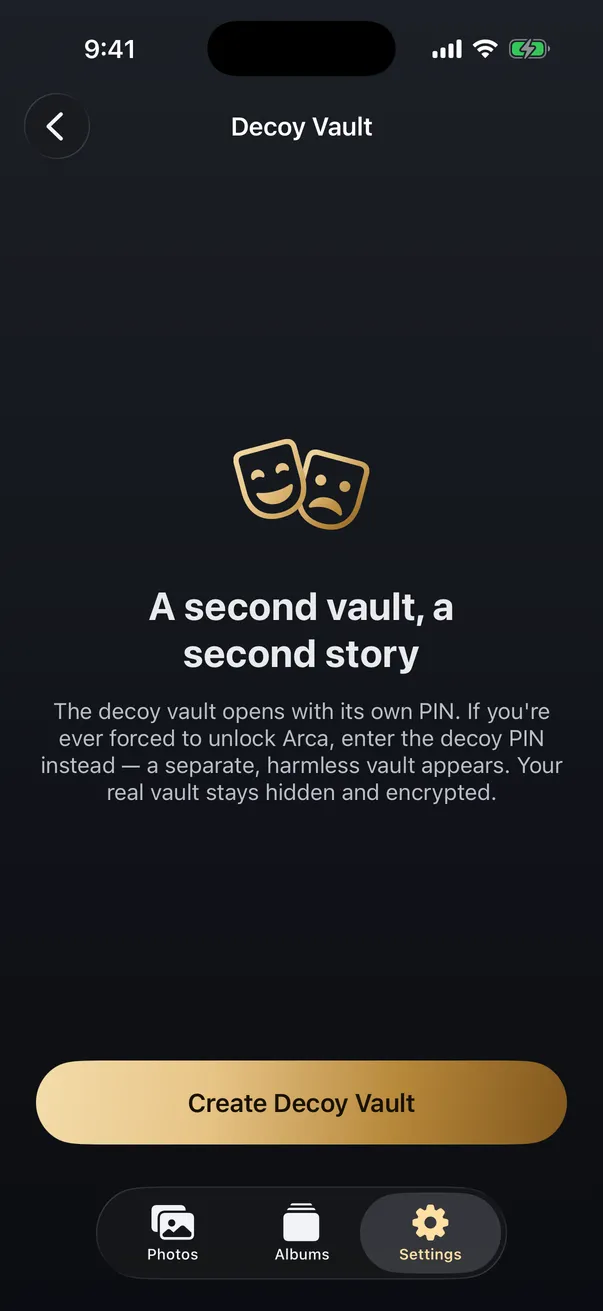
- A decoy vault. A second PIN opens a harmless set of contents, which matters most when the danger is someone who can pressure you to unlock the app rather than a stranger you will never meet.
What it does not do, stated plainly: it cannot stop your phone from being taken, it does nothing for photos you leave in the regular camera roll, and no encryption protects a vault you are willing to open under duress, which is the entire reason the decoy exists. If you want to understand how to judge any vault app on these terms, our guide to whether photo vault apps are safe lays out the questions to ask. Encryption is a tool with a defined job, not a magic shield.
Set this up before you need it
You cannot configure any of this calmly after the phone is already gone. Five minutes now is worth more than an hour of panic later.
- Turn on Find My in Settings, including the network and Send Last Location, so the phone stays findable even when its battery dies.
- Confirm Stolen Device Protection is on under Face ID and Passcode, and leave it on even though it is now the default.
- Use a six-digit or longer passcode, not four digits, and shield the screen when you type it in public.
- Set up two-factor authentication for your Apple Account if you somehow have not, since Stolen Device Protection depends on it.
- Move your private photos into a vault with its own PIN, then delete the originals from the camera roll and empty Recently Deleted, so the only copy is the encrypted one.
Do those five things and the lost-or-stolen scenario shrinks from a privacy emergency to an annoyance and an insurance claim. Your accounts are guarded by Apple, and the photos you actually care about are guarded by a lock that your passcode does not open. The order matters too: set it up while the phone is in your hand, because every one of these switches is impossible to reach once the phone is in someone else’s.
Losing a phone is stressful enough without wondering who is looking through your pictures. The built-in tools do a lot, and a separate vault quietly handles the part they were never meant to cover.
Frequently asked questions
Does Stolen Device Protection keep someone out of my photos? +
Not directly. Stolen Device Protection guards your Apple Account, saved passwords, and Wallet by requiring Face ID or Touch ID for certain actions when you are away from familiar places. It does not put your camera roll behind that biometric gate. The Photos app still opens with the device passcode, so anyone who knows your passcode can still see your photos.
Can a thief see my photos if they know my passcode? +
Yes. The device passcode unlocks the whole phone, including the Photos app and the built-in Hidden album. That is why a separately encrypted vault with its own PIN matters: it keeps the sensitive subset locked even when the phone itself is unlocked. Avoid typing your passcode in public where someone could watch.
Should I remotely erase my stolen iPhone? +
If you are confident it is gone and your data matters more than the hardware, yes. Mark it as lost in Find My first, which locks it and keeps tracking on. Erase only when you have given up on recovery, because erasing usually ends your ability to locate the device. With recent iCloud backups, you lose little by erasing.
Keep reading
Privacy
Should You Keep Photos of Your Passport on Your Phone?
Almost everyone has a photo of an ID, a bank card or a document somewhere in their camera roll. The risk is real but it isn't the one the scare articles describe, and the fix takes about ten minutes.
Privacy
What Can Someone See If They Know Your iPhone Passcode?
Your iPhone passcode is a master key, not just a screen lock. Here's exactly what it opens, what Stolen Device Protection does and doesn't cover, and the one lock a passcode never opens.
Privacy
If You're Forced to Unlock Your Phone: Decoy Vaults and Plausible Deniability
A locked app does not help if someone makes you open it. Here is how decoy vaults and plausible deniability change that calculation.
Your photos. Truly private.
Keep your photos in an encrypted vault on your iPhone, with no Arca account or automatic vault upload.
Free to download · iPhone · iOS 18+