
Comparisons
Google Photos Locked Folder vs a Photo Vault: Which Is Safer?
Google Photos Locked Folder hides sensitive photos behind Face ID, which is genuinely handy. But it isn't end-to-end encrypted, and backed-up photos sit on Google's servers. Here's how it compares to an on-device vault.
Google Photos Locked Folder hides sensitive photos from your grid behind Face ID, which is genuinely useful. But it isn’t end-to-end encrypted, and if you turn on backup, those photos sit on Google’s servers where Google can access them. A dedicated on-device vault keeps them encrypted on your phone, with no server involved. Which is safer depends on what you’re protecting against.
The short answer
Both tools solve real but different problems. Locked Folder is about visual privacy: keeping certain photos from showing up when you, or someone glancing at your phone, scrolls the main grid. An on-device vault is about data privacy: keeping the photos encrypted so that even someone with access to your files can’t read them, and so no company holds a copy.
If your worry is a friend swiping through your camera roll or a shared photo popping up at the wrong moment, Locked Folder handles that well and costs nothing extra. If your worry is the photos themselves being readable, by a company, on a server, or by someone who gets past your screen lock, that’s where a purpose-built vault does more. Neither is “better” in the abstract; they’re aimed at different threats.
The rest of this compares them honestly, so you can match the tool to what you actually need.
What Google Photos Locked Folder actually does
Locked Folder is a feature inside Google Photos that gives you a separate, protected space for sensitive photos and videos. Anything you move there disappears from the main grid, from search, from albums, and from memories, so it won’t surface while you’re scrolling or showing someone a photo. To open the folder, you authenticate with Face ID, Touch ID, or your device passcode. Google added it to the iOS app in 2023, so iPhone users have it too, not just Android.
By default, Locked Folder is tied to the single device you set it up on. Its contents aren’t backed up unless you choose to turn backup on. If you do, the folder syncs to your Google account and you can reach it from your other signed-in devices. That convenience is the feature’s biggest selling point, and also the root of its main privacy limitation, which we’ll get to.
Setting it up is quick: in the Google Photos app you open your library area, find Locked Folder, authenticate, and move photos into it from the main view. From then on, an item in there behaves as if it left your normal library entirely, which is exactly the point. One practical caveat of keeping it device-only: because those photos aren’t backed up, if you delete the app or lose the phone, an un-synced Locked Folder goes with it. The privacy of staying off the cloud comes with the responsibility of not being your own single point of failure.
Where Locked Folder is genuinely strong
It’s worth being fair about what Locked Folder does well, because for a lot of people it’s enough.
- It removes photos from the everyday view. The most common privacy problem is someone seeing a photo over your shoulder or while you hand them your phone. Locked Folder solves exactly that.
- It’s built in and free. No extra app, no new account, no cost. For most Google Photos users it’s one tap away.
- It uses your device’s biometrics. Opening it needs your face or fingerprint, so a casual snooper who doesn’t have your passcode is stopped at the door.
- It keeps items out of shared albums and memories, so a private photo won’t resurface in a slideshow or a shared library by accident.
For “keep these out of sight,” that’s a solid, convenient package. The questions start when your definition of private goes deeper than out of sight.
Where Locked Folder falls short
The gaps aren’t flaws so much as boundaries of what the feature was designed to do. Knowing them helps you decide whether it’s enough.
The big one: Locked Folder is not end-to-end encrypted. Google Photos protects your data with encryption in transit and at rest, but Google holds the keys, so it can access your images. That’s a deliberate part of how Google Photos works. When you turn on backup for Locked Folder, those photos live on Google’s servers under the same policy as the rest of your library, which includes Google’s standard access and content-scanning practices.
To be precise and not alarmist about that access point: it doesn’t mean a person at Google is browsing your photos. It refers to automated systems, which scan for things like known illegal material, and to the fact that Google can access backed-up content when its policies or the law require. For ordinary photos, that’s a non-issue for most people. But if your definition of private is “no company can access this, ever,” a backed-up Locked Folder doesn’t meet it, and that’s the distinction that matters here.
There are a few smaller limits too. Locked Folder is opened by your device passcode, so anyone who knows that passcode can open it, just as they could unlock the phone itself. It offers no decoy or second layer if you’re ever pressured to unlock. And everything stays inside the Google ecosystem, so your trust ultimately rests on Google’s policies rather than on math you control.
How an on-device vault is different
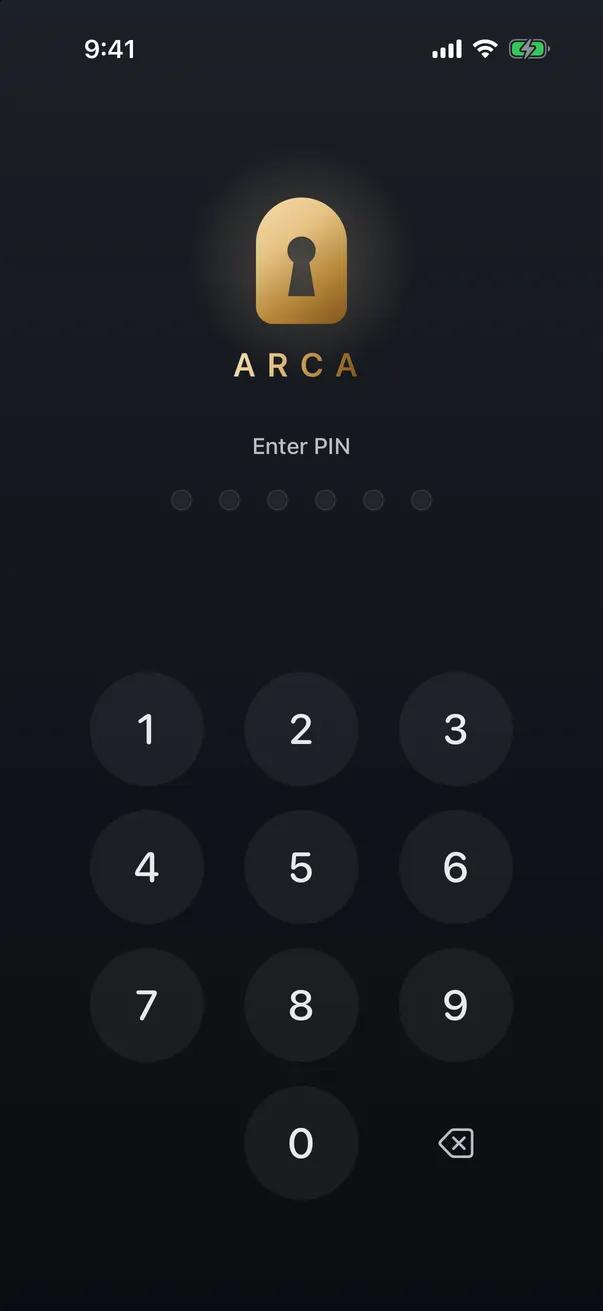
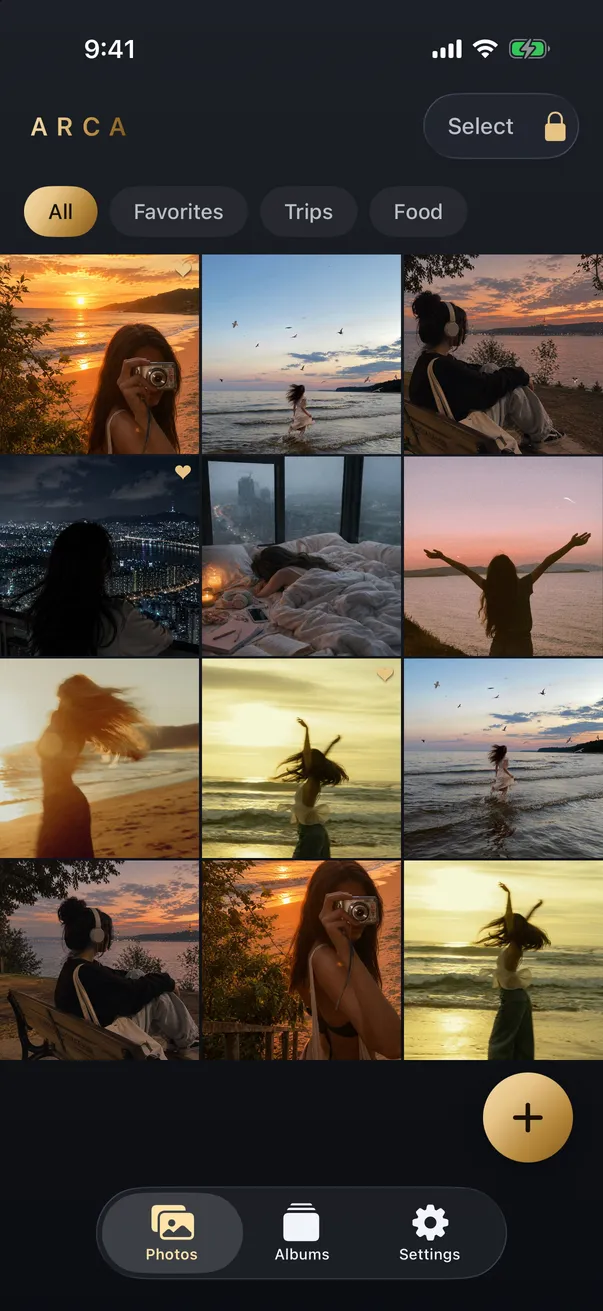
A dedicated vault app takes a different approach: instead of hiding photos inside a cloud service, it encrypts them on your phone. With Arca, when you move a photo in, it’s encrypted with AES-256-GCM using a key derived from your PIN through Argon2id, and it lives in the app’s own container, separate from your photo library. Arca requires no account and does not automatically upload your vault library.
The reason the PIN carries so much weight is how it becomes a key. Argon2id is a deliberately slow, memory-hard function, so even if someone copied the encrypted container off your phone, they couldn’t rapidly guess PINs against it; each attempt is made expensive on purpose. Paired with AES-256-GCM for the encryption itself, the effect is that the photos are guarded by something you know rather than by a company’s promise not to look.
That changes what has to be trusted. With Locked Folder, backed-up photos are readable by Google because Google holds the keys. With an on-device vault, the key comes from a PIN that stays in your head, so the encrypted photos are just unreadable data to anyone who doesn’t have it, including the app’s maker. Arca also offers a decoy vault, so a unlock done under pressure can open an innocuous set of photos rather than the ones you actually want kept private. This is the model we explain in more depth in are photo vault apps actually safe.
Side by side
Here’s how the two approaches compare on the points that matter most for privacy.
| Factor | Google Photos Locked Folder | On-device vault (Arca) |
|---|---|---|
| Hides photos from the grid | Yes | Yes |
| End-to-end encrypted | No (Google holds keys) | Yes, on device |
| Photos leave your phone | Only if backup is on | No automatic vault upload; explicit exports and backups can leave |
| Needs an account | Yes (Google) | No |
| Cross-device access | Yes, with backup | No (device-only) |
| Decoy / second layer | No | Yes |
| Cost | Free | App-dependent |
The pattern is clear. Locked Folder wins on convenience and cross-device access; the vault wins on keeping the data itself private and off any company’s servers. Which column matters more is the whole decision.
The honest tradeoff: backup and convenience
An on-device vault isn’t free of downsides, and it would be dishonest to pretend otherwise. Because the photos never leave your phone, they aren’t automatically backed up. If you lose the device and haven’t exported a copy yourself, those photos are gone. Locked Folder, with backup on, sidesteps that by keeping a synced copy in the cloud, which is genuinely convenient if you switch phones often or want your private photos on every device.
If you go the on-device route, the practical fix for that backup gap is to make one yourself, deliberately and rarely: export the vault’s contents to an encrypted disk image on a computer, or to another offline device, and store it somewhere safe. It’s more manual than a cloud toggle, but it keeps the principle intact, that the photos live only where you decide, rather than on a server by default.
So the real question underneath all this is how you weigh two risks against each other: the risk of a company or server holding your photos, versus the risk of losing photos that live in only one place. There’s no universal right answer, and we walk through the full set of options, including offline backup, in where to store private photos. A vault also only protects what you put in it, and you have to delete the originals from your camera roll, or an exposed copy stays behind.
Which should you choose?
Match the tool to your actual concern. If you mainly want photos out of sight during everyday phone-sharing, and you’re comfortable with Google holding your library, Locked Folder is convenient and does that job well. If the photos are genuinely sensitive and you’d rather no company could access them, or you want a decoy layer and no server involved, an on-device vault fits better.
A quick way to decide is to picture who you’re keeping the photos from. If it’s other people who might glance at your phone, Locked Folder’s biometric lock and hidden grid are aimed right at that, and the optional cloud backup is a real plus. If your list of “who” includes companies, servers, or someone who might learn your passcode, the answer shifts toward on-device encryption with a separate PIN, because those threats reach past a hidden folder but not past a key you alone hold.
They also aren’t mutually exclusive. Plenty of people use Locked Folder for mildly private photos and reserve an encrypted vault for the handful that truly matter, keeping those out of the cloud entirely. You can read more about the on-device model on our security page. The point isn’t that one tool is right for everyone; it’s to know which kind of privacy each one actually gives you, so nothing you assumed was sealed turns out to be merely hidden.
Frequently asked questions
Is Google Photos Locked Folder safe? +
For keeping photos out of casual view, yes. Locked Folder hides items from your grid, search, and memories, and opening it requires your Face ID, Touch ID, or passcode. The limit is that it isn't end-to-end encrypted. If you turn on backup, the photos are stored on Google's servers where Google can access them under its policies. It's strong visual privacy, not a sealed vault.
Are photos in the Locked Folder backed up, and can Google see them? +
Backup is optional. If you leave it off, Locked Folder photos stay on that one device. If you turn it on, they sync to your Google account so you can reach them from other devices, and at that point they live on Google's servers, encrypted in transit and at rest but with keys Google holds. That means Google's standard access and content policies apply to them.
What's the difference between Locked Folder and a vault app? +
Locked Folder hides photos inside your existing Google Photos app and account. A vault app like Arca encrypts the photos themselves on your device, in a separate container, with no Arca account or automatic vault upload. Put simply, Locked Folder mostly protects the view of your photos, while an on-device vault protects the data.
Keep reading
Comparisons
Is Signal or Telegram a Safe Place for Private Photos?
Sending photos to yourself in a messaging app is one of the most common improvised vaults there is. Signal's version holds up better than most people expect. Telegram's works differently from what most people assume.
Security
Are Photo Vault Apps Safe? What to Check Before Importing
Check encryption, recovery, and the copies left outside a vault before trusting an app with your photos.
Comparisons
The Best Private Photo Vault Apps for iPhone in 2026
A balanced buyer's guide to private photo vault apps for iPhone, with the criteria that actually matter and an honest look at the tradeoffs.
Your photos. Truly private.
Keep your photos in an encrypted vault on your iPhone, with no Arca account or automatic vault upload.
Free to download · iPhone · iOS 18+